Free Thumbnail Tester Online
Use this thumbnail tester to see exactly how your thumbnail and title look on the YouTube home page, in search and in the sidebar – on desktop, mobile and TV – then compare versions side by side and pick the one that stands out.
Drop your thumbnails here
Up to 4 versions · JPG, PNG, WEBP or GIF · 1280 × 720 recommended
Related Tools
View all tools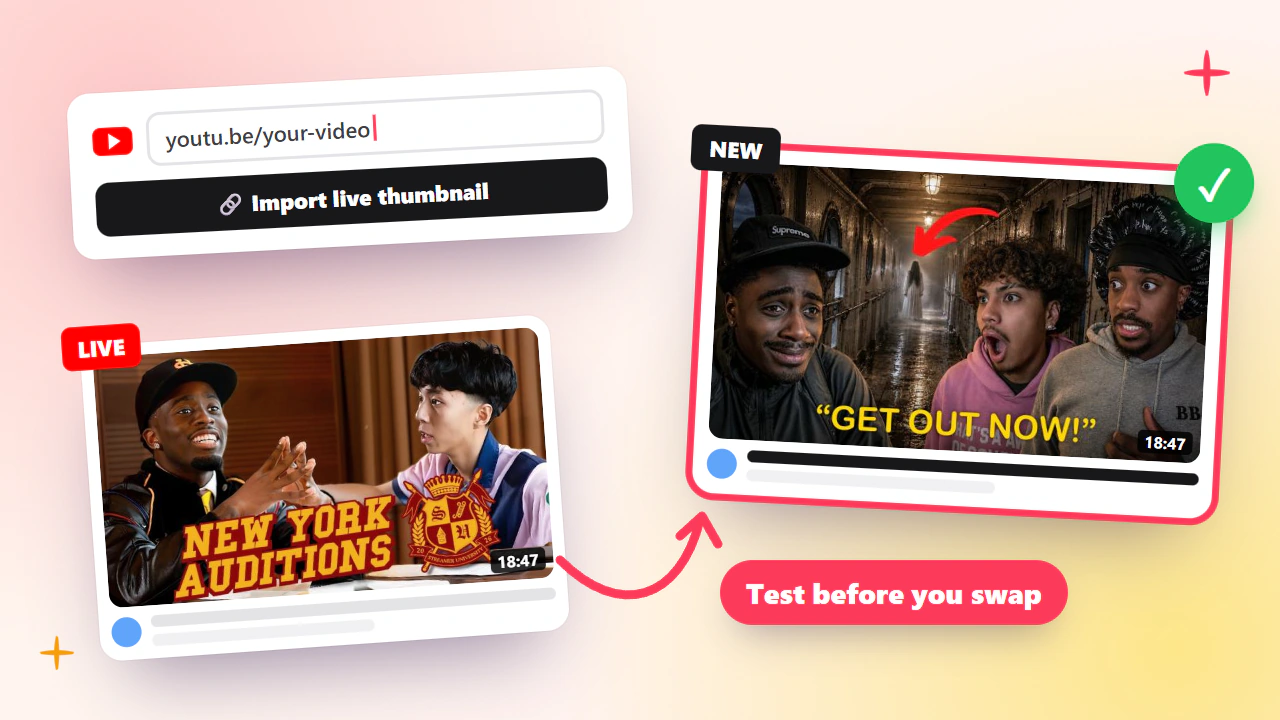
YouTube Thumbnail Tester
Import your live thumbnail from a video link and test a new one against it before you swap.

Thumbnail Design
Design click-worthy thumbnails with niche templates, one-click cutouts, bold text and stickers.
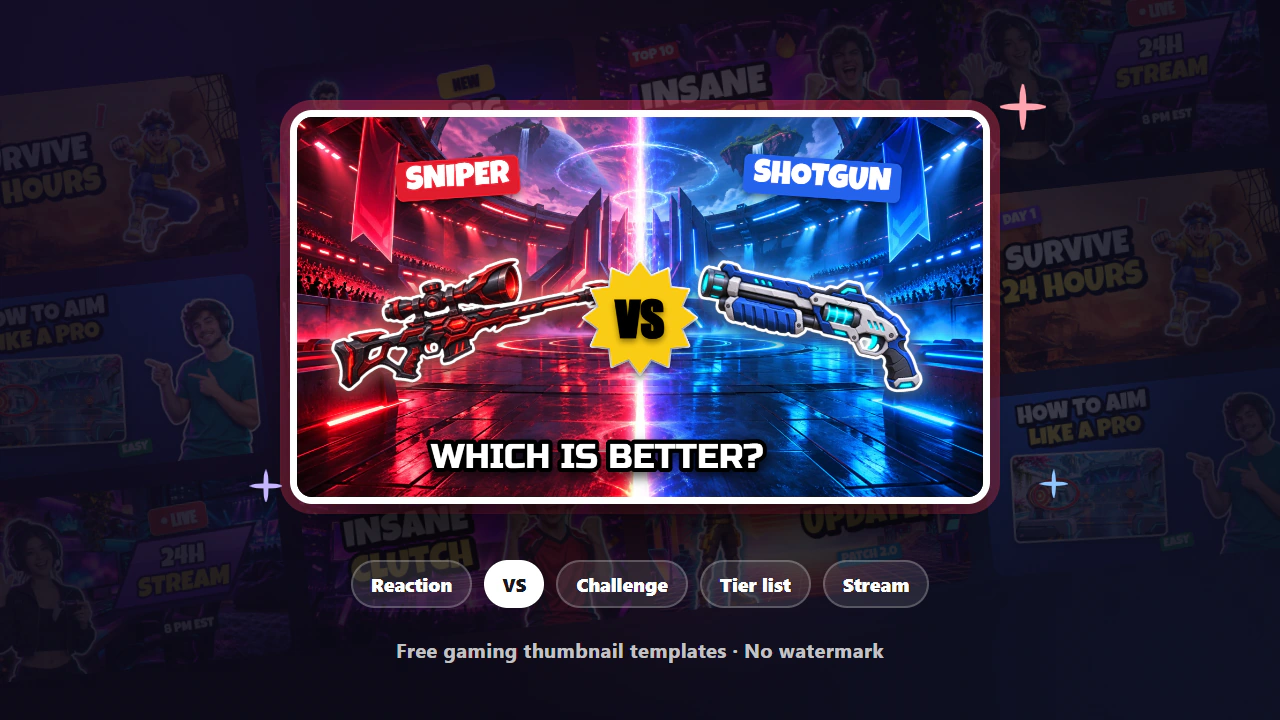
Gaming Thumbnail Maker
Gaming YouTube thumbnails from templates for reactions, VS, challenges, tier lists and streams. Cut out, outline, download.
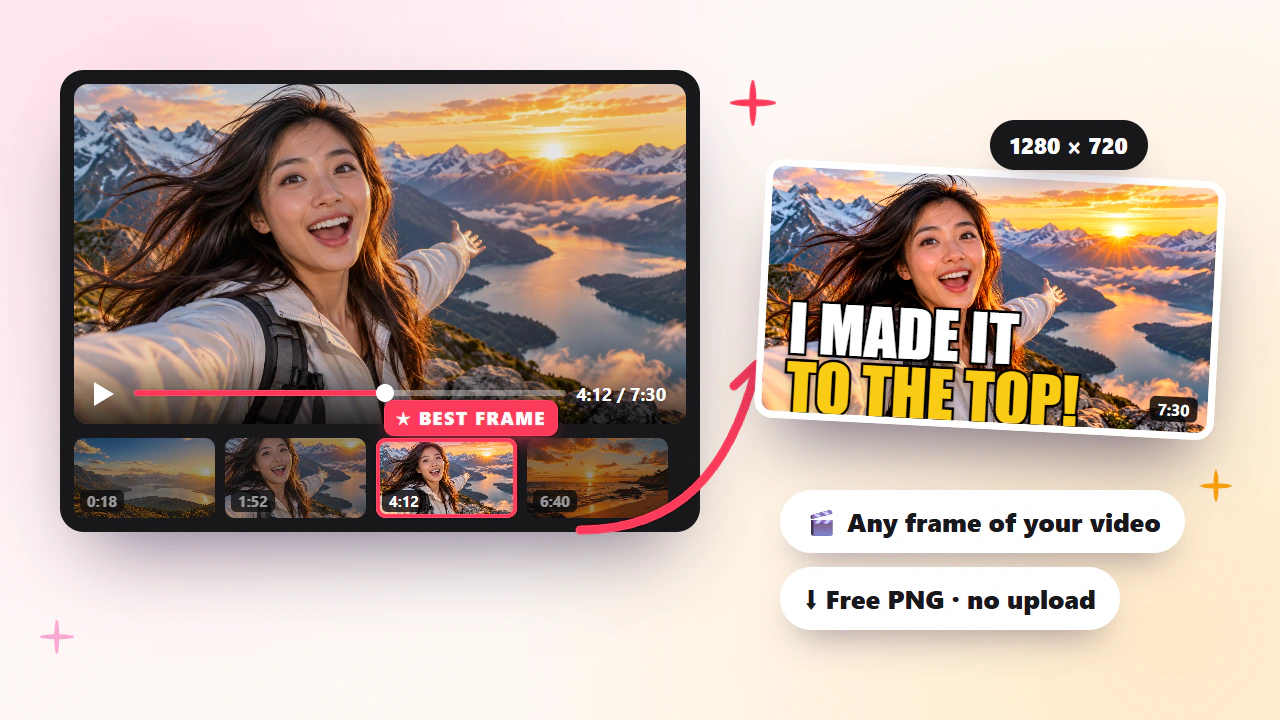
Video Thumbnail
Turn a frame of your video into a thumbnail: best frames picked for you, a bold title and free download.
How it works
How to use the thumbnail tester in three steps
- 01
Upload your thumbnails
Drop one to four versions into the tester and type the title for each. Add your channel name and avatar so the preview looks like your real video.
- 02
Preview it in a real-looking feed
Switch between home, search, the up next sidebar, mobile and TV, in light or dark mode. Add competitor thumbnails to test whether yours stands out.
- 03
Check, compare and decide
Compare thumbnails side by side, check readability at real size and blocked areas, then download the preview to share with your team.
Design vs. reality
Your monitor makes every thumbnail look good
You design at 1280 pixels wide, but most viewers see your thumbnail at about 160 to 360 pixels on a phone. Small text disappears, busy backgrounds turn to noise and the length badge covers the corner. A thumbnail tester shows you that view before your audience does.

Features
Everything a thumbnail tester should do
Thumbnail preview, competitor comparison, A/B testing and a thumbnail checker in one free tool – no sign-up and no channel access needed.
Realistic YouTube thumbnail preview
Home feed, search results and the up next sidebar on desktop, plus mobile home, mobile search and TV – with length badges, view counts, upload time and dark mode.
Test against competitors
Upload thumbnails from videos you compete with and the tool mixes yours into the same feed. Shuffle the order to check it stands out in any position.
Compare up to 4 versions
Run a simple thumbnail A/B test before you publish: switch versions in the feed or compare thumbnails side by side, each with its own title.
Readability at real size
See your thumbnail at the exact pixel sizes used on desktop and phones, with grayscale and squint filters to test contrast and clarity.
Blocked area check
Highlight where the length badge, progress bar and hover buttons sit so you keep faces and text out of those spots.
Built-in thumbnail checker
The thumbnail checker flags 1280 × 720 resolution, 16:9 ratio, the 2 MB limit and file format, and you can download a preview image to share for feedback.
Thumbnail specs
YouTube thumbnail size and requirements
Use these numbers when you export your thumbnail. The tester checks them automatically as soon as you upload.
| Recommended size | 1280 × 720 px |
|---|---|
| Minimum width | 640 px |
| Aspect ratio | 16:9 |
| Maximum file size | 2 MB |
| File formats | JPG, PNG or GIF |
| Typical display size | 160 × 90 to 360 × 202 px |
Click-through tips
What makes a thumbnail get clicked
Run each of these through the tester before you hit publish.
- 1
Keep text to 3–4 words
Short, bold text stays readable at phone size. If it does not pass the squint test, cut words or make them bigger.
- 2
Show one clear subject
One face or one object reads faster than a busy scene. Make it large and separate it from the background.
- 3
Use strong contrast
Bright subjects on darker backgrounds (or the reverse) stand out in both light and dark mode. Check it in grayscale.
- 4
Be different from the feed
If every competitor uses red and yellow, try another color. Placing your thumbnail among competitors shows this instantly.
- 5
Let the title do its own job
The thumbnail and title should work together without repeating each other. Test different title and image pairs as versions.
- 6
Avoid the bottom-right corner
The length badge always sits there, and the progress bar runs along the bottom. Keep important details elsewhere.
FAQ
Thumbnail tester FAQ
What is a thumbnail tester?
A thumbnail tester shows your thumbnail and title inside a realistic copy of the YouTube interface before you upload, so you can see how they look in the feed, in search and on phones, and choose the version most likely to get clicks. This free tool also checks size and format and lets you compare up to four versions.
How is a thumbnail tester different from YouTube’s Test & Compare?
YouTube Studio’s Test & Compare runs after you publish and uses real viewers over several days. This tool works before you publish: you can test as many ideas as you like, catch readability and layout problems early, and only send your strongest versions to a live test.
Do I need to connect my YouTube channel to use the thumbnail tester?
No. Upload your images, type a title and channel name, and the preview is ready. No sign-up and no channel access are required.
Are my thumbnails uploaded anywhere?
No. Everything runs in your browser. Your thumbnails, competitor images and avatar never leave your device.
How accurate is the thumbnail preview?
The layouts follow YouTube’s current sizes for thumbnails, titles, badges and spacing on desktop, mobile and TV. Small details can change when YouTube updates its design, but the sizes and the way your thumbnail competes for attention stay the same.
How many versions can I compare?
Up to four versions at once, each with its own title. You can switch between them in any feed view or see them side by side at real size.
Can I test my title too?
Yes. Every version has its own title field, so you can try different title and thumbnail combinations and see how long titles are cut off on each screen.
When should I use a thumbnail tester?
Every time you finish a thumbnail – before you upload a new video and before you swap the thumbnail on an older one. A quick pass through the tester catches the problems that cost clicks: unreadable text, a covered corner or a design that blends into the feed.
Can a thumbnail tester predict my click-through rate?
No tool can promise an exact click-through rate. This tool shows how your thumbnail looks and competes in a real-looking feed, which is where most CTR problems start. After you publish, YouTube’s own Test & Compare confirms the winner with real viewers.