Submagic Thumbnail Generator
Submagic is an AI video editor with cover-image workflows and free thumbnail download tools. Paste a public video link to save its existing cover, or upload footage and prepare a new cover image with the video package.

Start with your video link / raw image
Support png, jpeg, jpg, bmp, webp format image
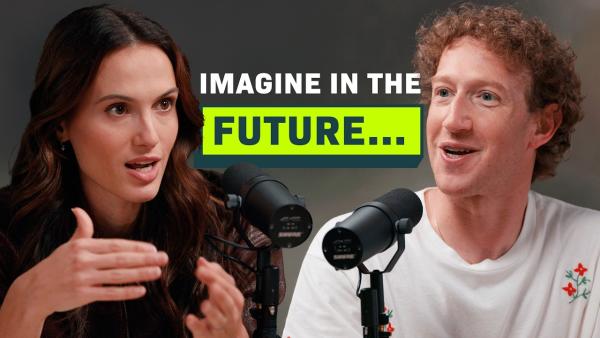
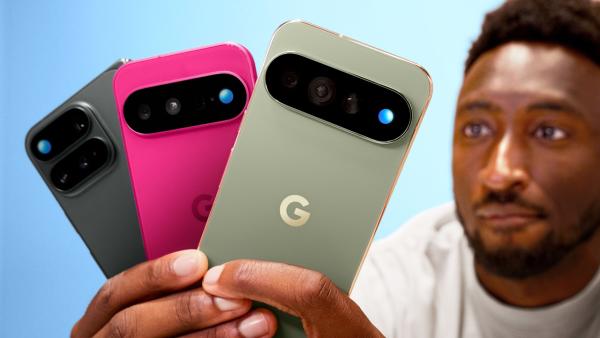


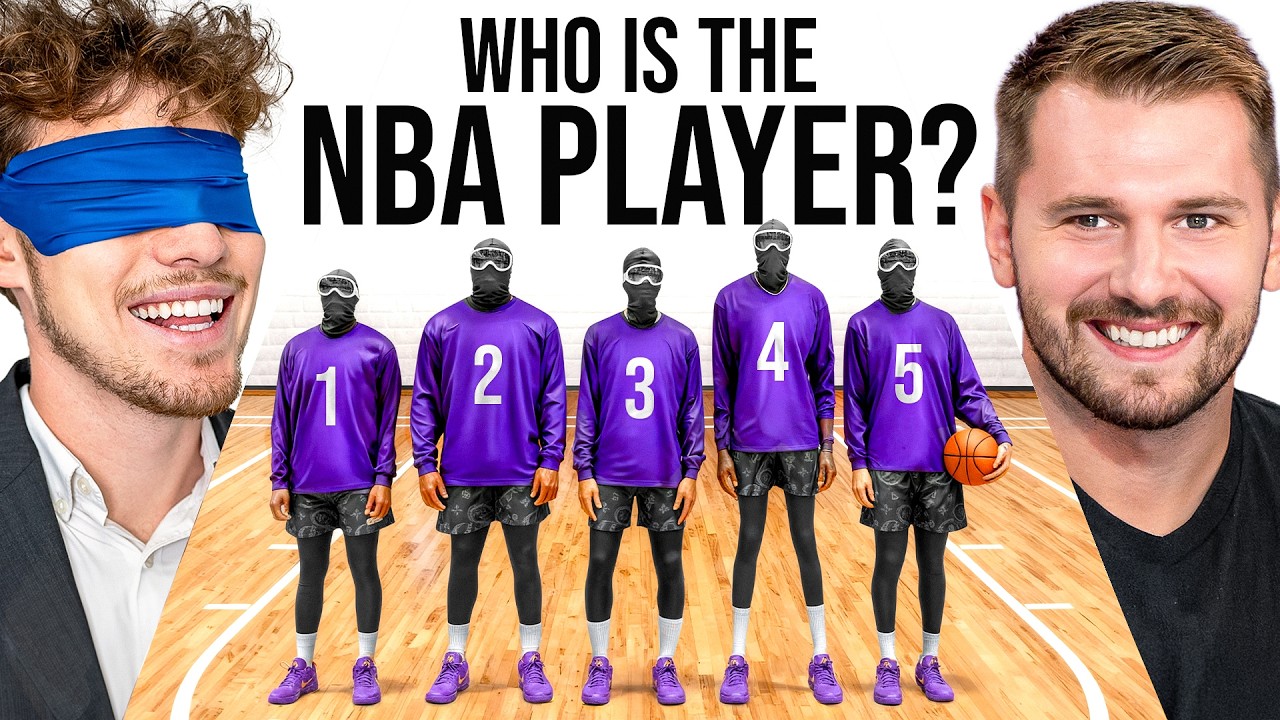

Download Thumbnails & Prepare Video Covers with Submagic in Seconds
Submagic combines tools for saving published thumbnails with a cover-image step inside its broader video workflow.


Save an Existing YouTube Thumbnail
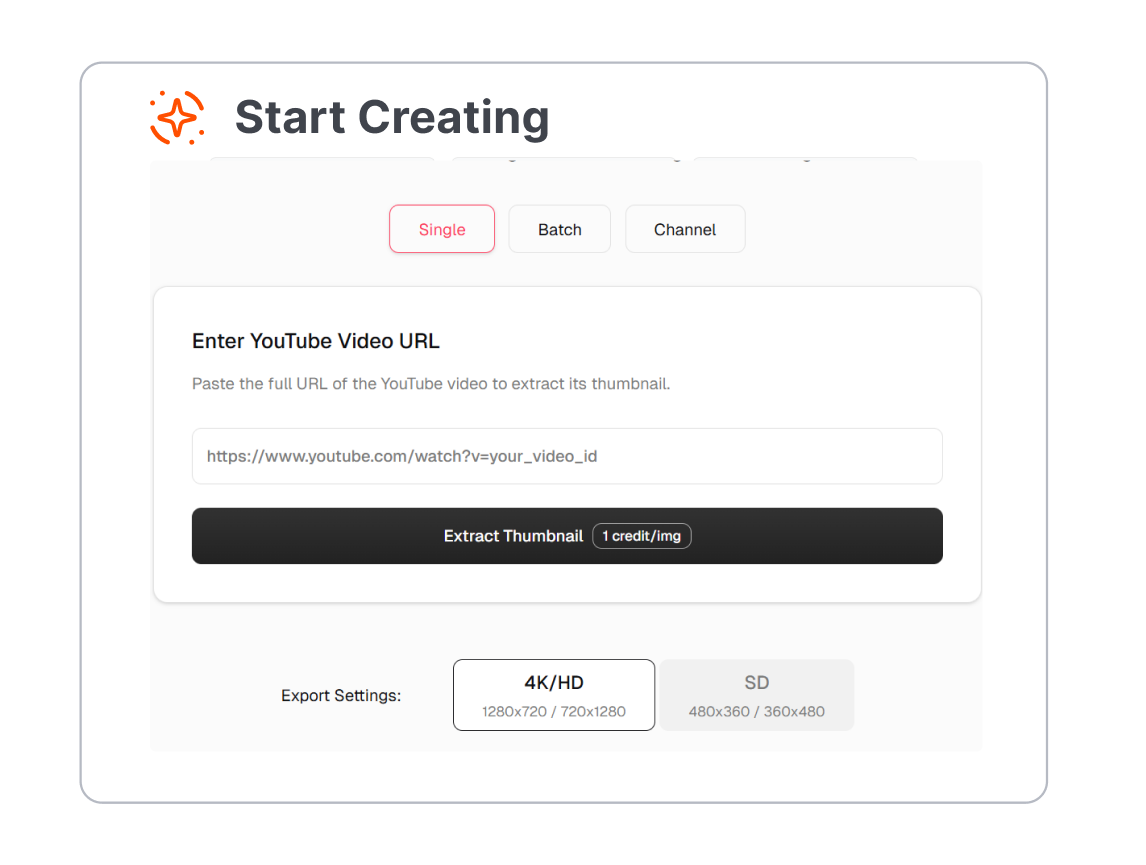
Submagic offers a free YouTube thumbnail downloader for covers already attached to public videos. Paste the video URL to retrieve the available image instead of taking a screenshot from the player. Save it as a reference or for permitted reuse after checking the image rights.
Add a Cover to the Video Package
Submagic includes cover-image generation within its AI video editor and Magic Clips packaging flow. Bring in a video or YouTube link, then prepare clips with supporting titles, descriptions, and cover images. Keep the cover beside the edited content so the publishing assets are easier to review together.


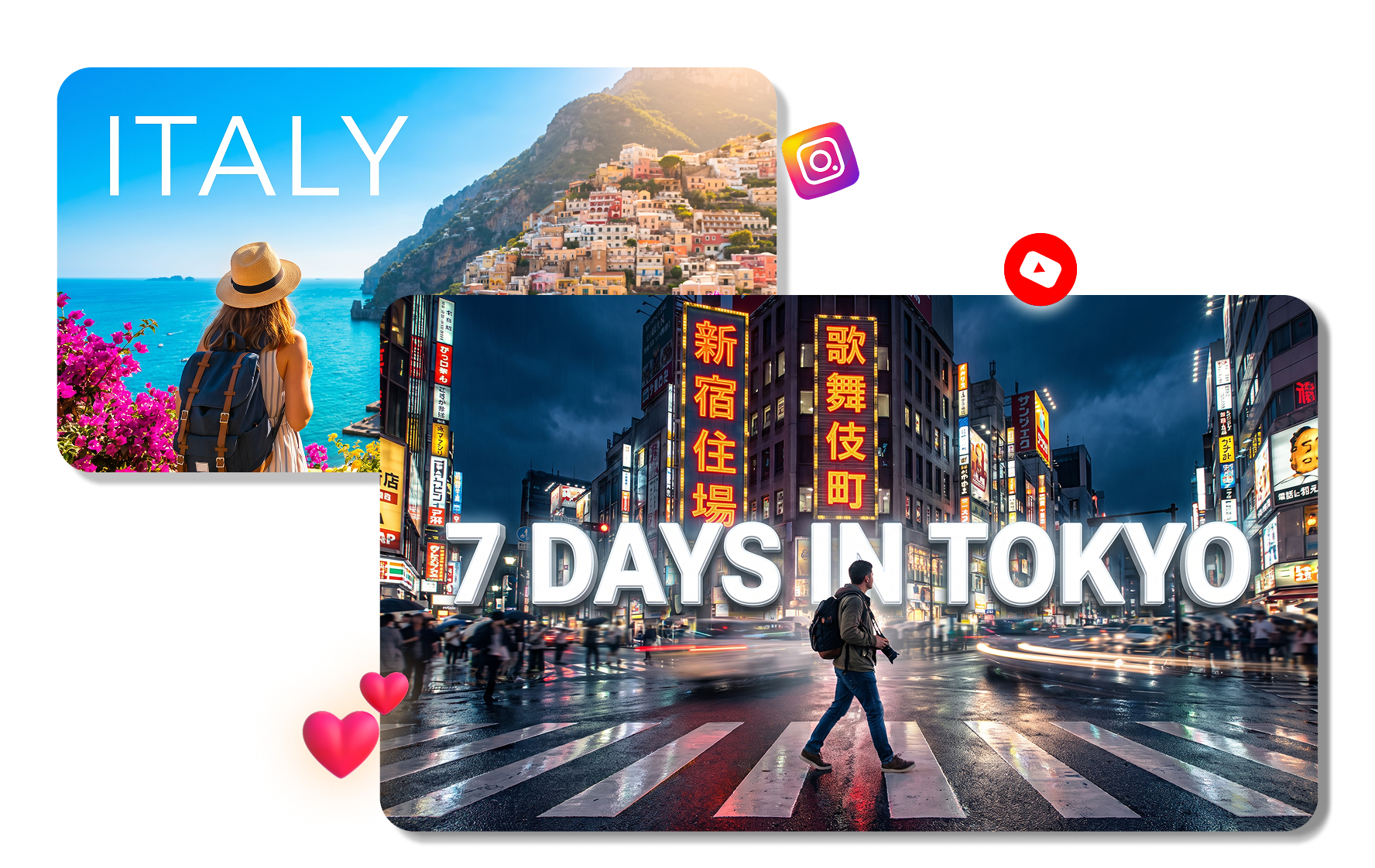
Download for the Right Placement
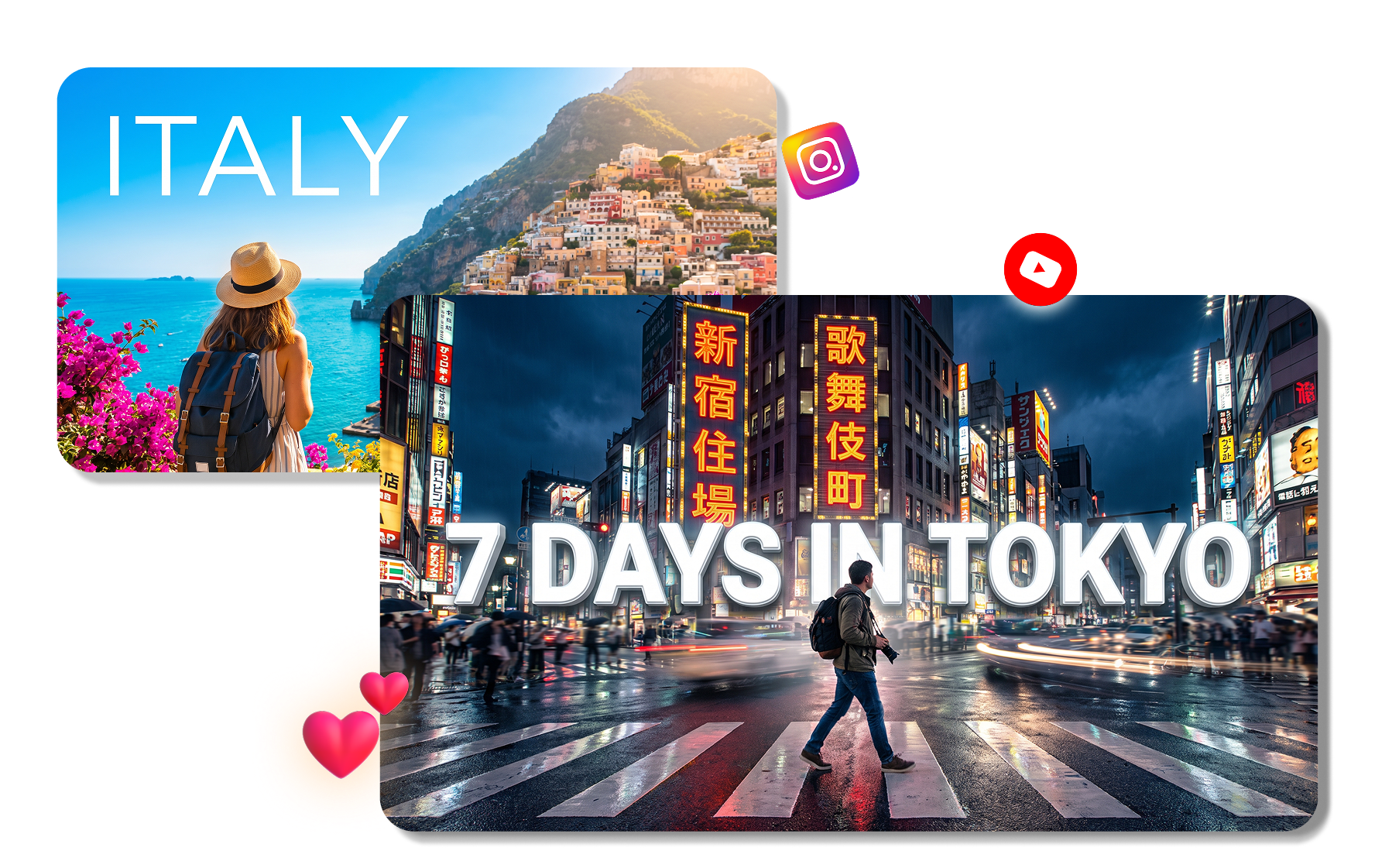
Submagic also lists a downloader for existing Instagram Reels covers. For YouTube, use 16:9 for video thumbnails and 1:1 for podcast playlist artwork; Instagram Reels covers use a taller crop. Download the source image first, then check its dimensions and crop it elsewhere if another placement needs a different ratio.
Download or Create a Submagic Thumbnail in 3 Steps
Choose the source and cover task first, then save an image that fits the intended video placement.
1. Choose New or Existing
Use the video workflow when the clip needs a new cover image. Pick a Submagic downloader when the goal is to save a cover already published on YouTube or Instagram.
2. Add the Source
Upload footage or paste a YouTube link for the cover workflow. For a download, provide the public video or Reel URL that owns the existing thumbnail.
3. Check the Image and Save
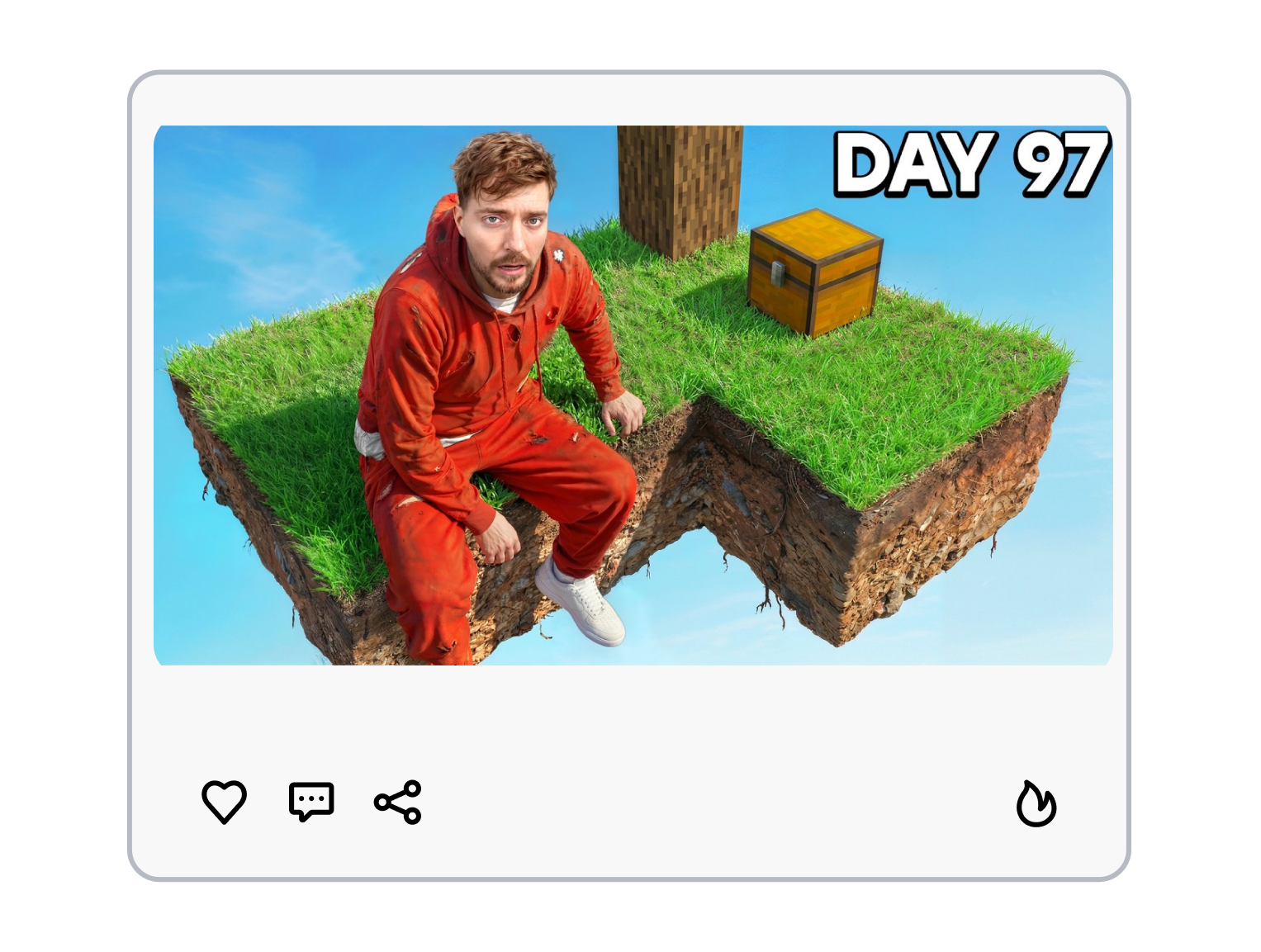
Preview the generated or retrieved cover before saving it. Confirm the dimensions, file type, crop, and usage rights for the platform where it will appear.
Submagic Thumbnail Tool for Different Workflows
Use Submagic to prepare or retrieve cover images for YouTube videos, short clips, research, and client work.
YouTube Creators
Retrieve an existing YouTube cover from its public video link. Prepare a new cover image in the video workflow when a clip is still being edited.
Podcasters and Interview Channels
Prepare cover assets for clips cut from a long conversation. Keep YouTube podcast playlist artwork square while using the video-specific cover ratio for individual uploads.
Short-Form Teams
Save published YouTube or Instagram covers for reference, then check the crop before using the idea in another format. Keep key subjects away from edges that may be trimmed in vertical placements.
Agencies and Social Teams
Collect permitted reference covers with the Submagic grabber workflow and organize them by client or platform. Confirm image rights before sharing, adapting, or republishing downloaded assets.
Frequently Asked Questions
What is Submagic?
Does Submagic have a thumbnail generator?
Can Submagic download YouTube thumbnails?
What size should a YouTube thumbnail be?
What ratio should an Instagram Reels cover use?
Which thumbnail file formats are common?
What is a useful alternative to Submagic for thumbnails?
Looking for Another Option? Explore Thumbs.ai as a Submagic Alternative.
Thumbs.ai brings text, uploaded images, YouTube links, templates, references, and face tools into a workspace focused on creating and refining thumbnails.