

YouTube Thumbnail Border Maker
Add a high-contrast frame to an existing video cover. Apply viral outline styles that stop scrollers in their tracks and force instant focus on your video. Upload the image, then choose the border color, width, corner radius, and line style that suit the story inside it.
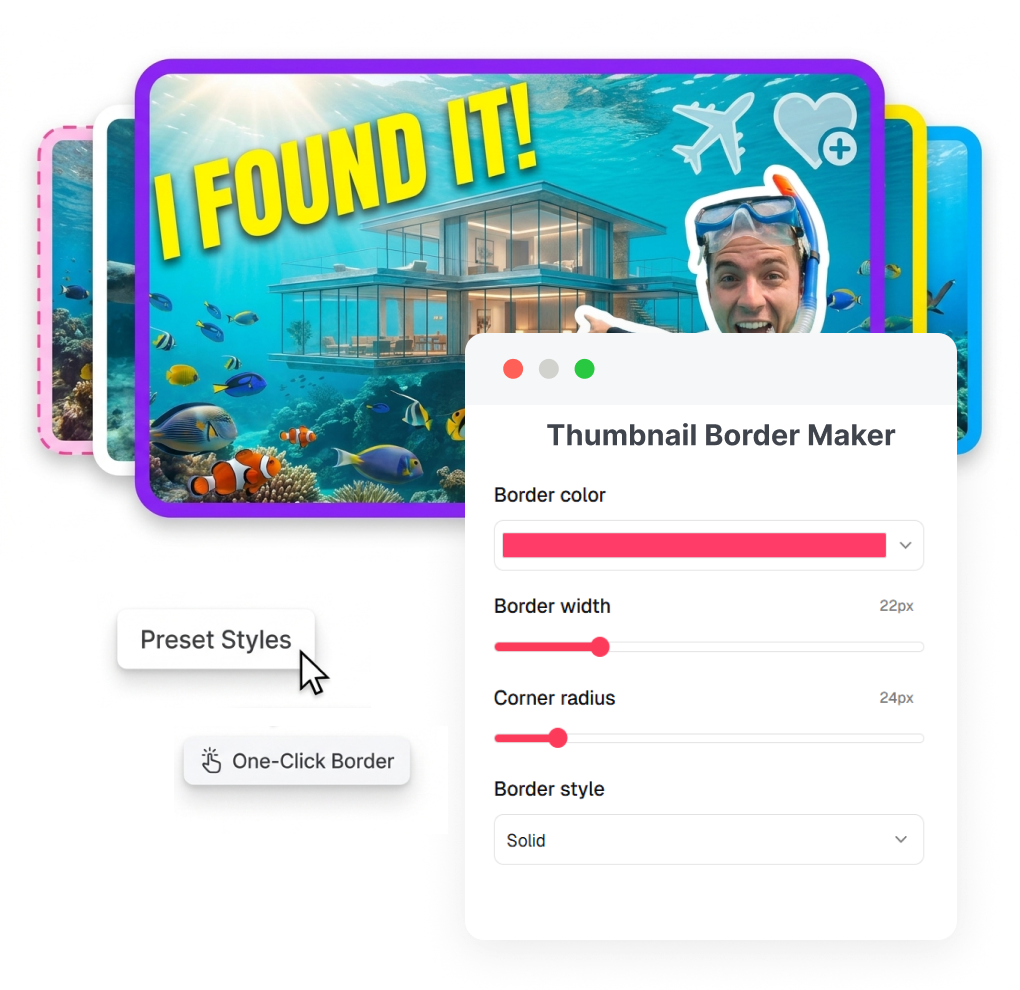
How to Use the YouTube Thumbnail Border Maker
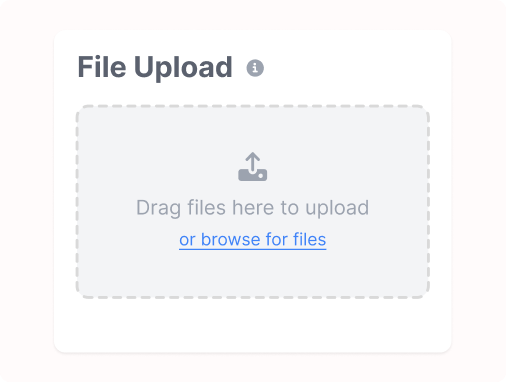
1. Upload the thumbnail image
Add the cover you want to refine and give the work a name if useful. The uploader shown in the tool accepts PNG, JPG, JPEG, and WebP images up to 4 MB.
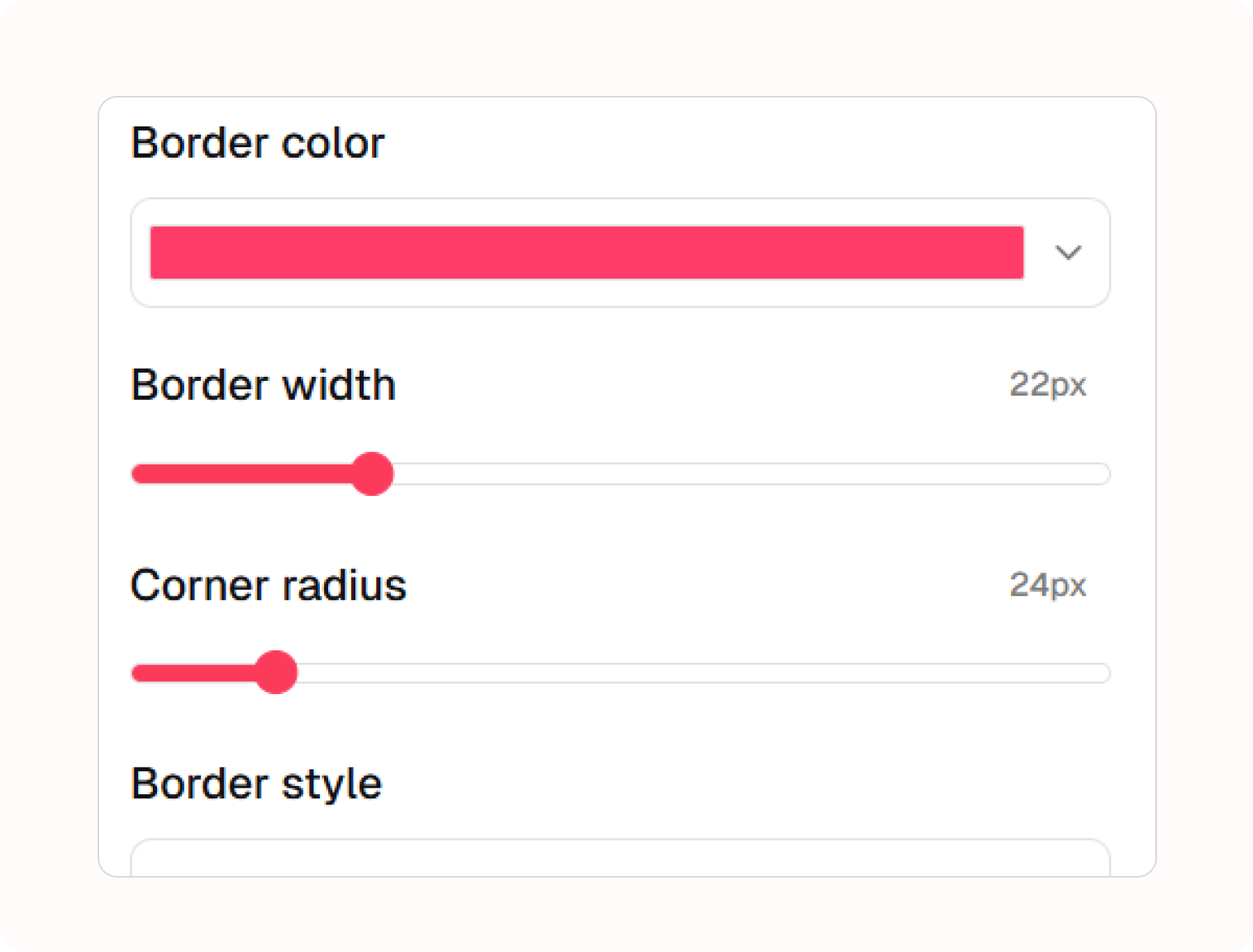
2. Set the border treatment
Pick a color, adjust the border width, round the corners, and choose a solid, dashed, or double line. Each control changes the frame without changing the idea inside the image.
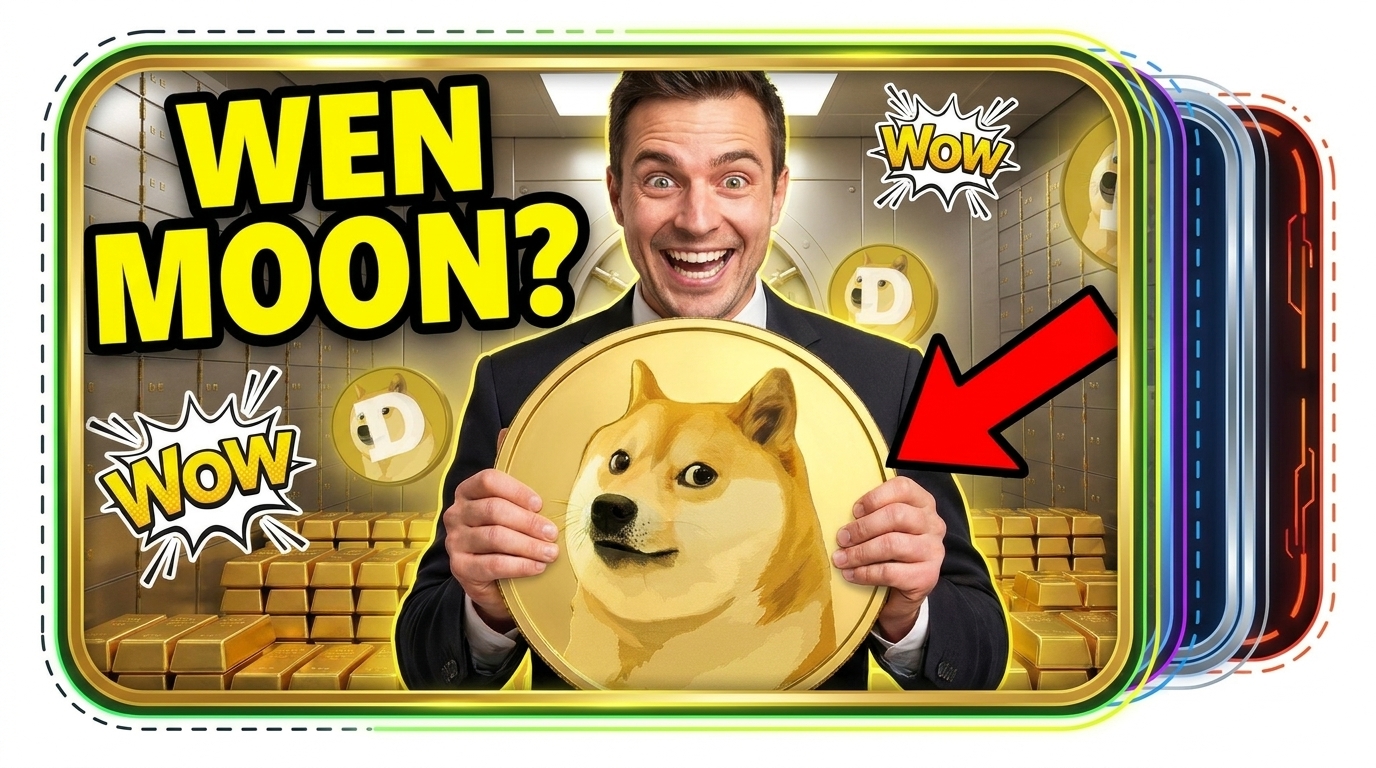
3. Apply and save
Review the border around your cover, then apply the treatment and save the result in your workspace. Use the frame as one clear design choice, not a substitute for a readable image.
Make Your Video Stand Out with AI YouTube Thumbnail Border Maker
Frame an Existing Cover
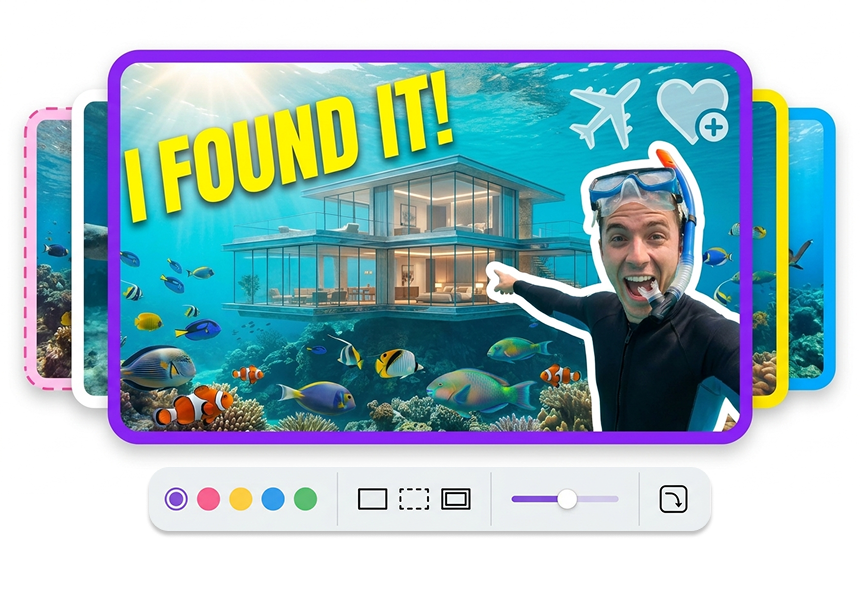
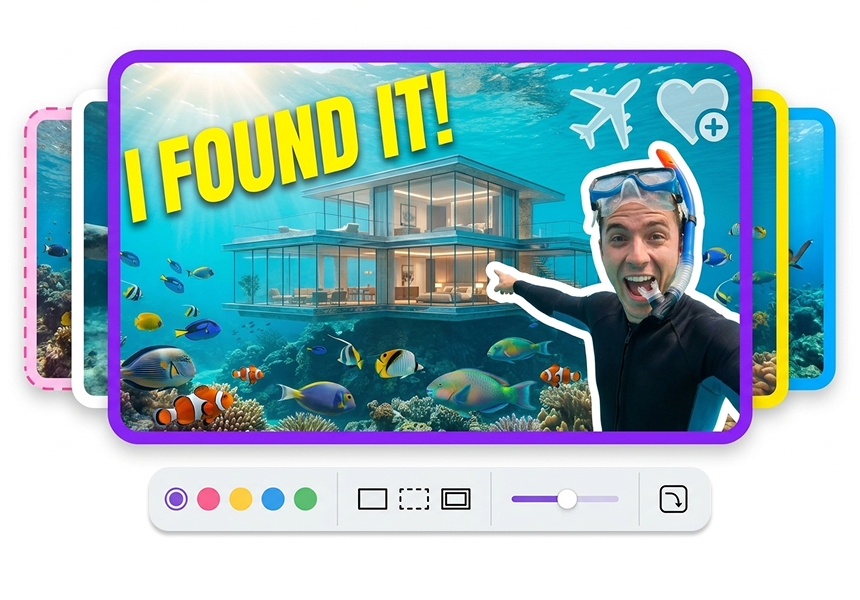
Upload the thumbnail you already made and add a border around its outer edge. Keep the central subject, headline, and scene intact while the frame gives the image a clearer boundary. Finish a revision without reopening the entire cover design.
Match the Border Color
Choose a border color from the palette or a recently used shade. Pair a black border with a bright image when it creates the separation you want, or choose an accent that echoes a meaningful color in the scene. Keep the frame connected to the cover rather than using color only for noise.
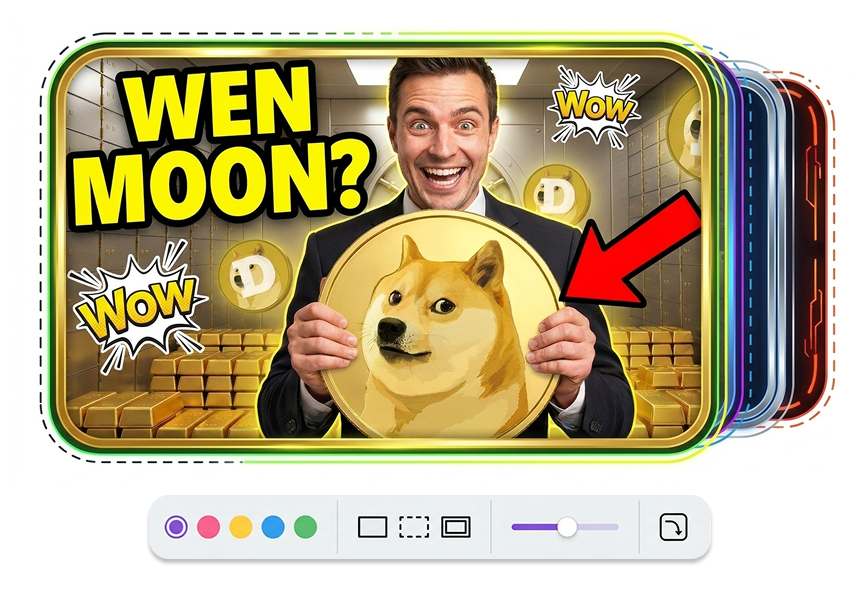
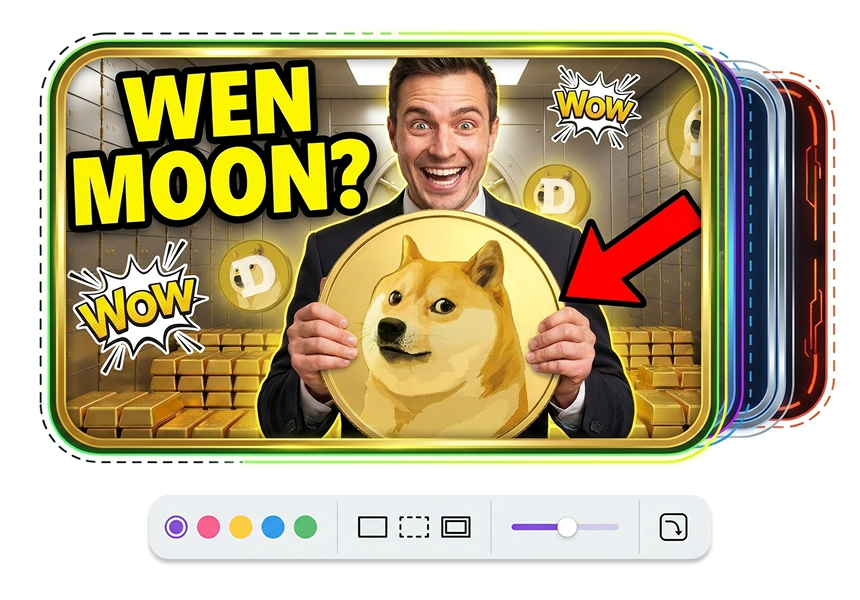
Tune Width and Corners
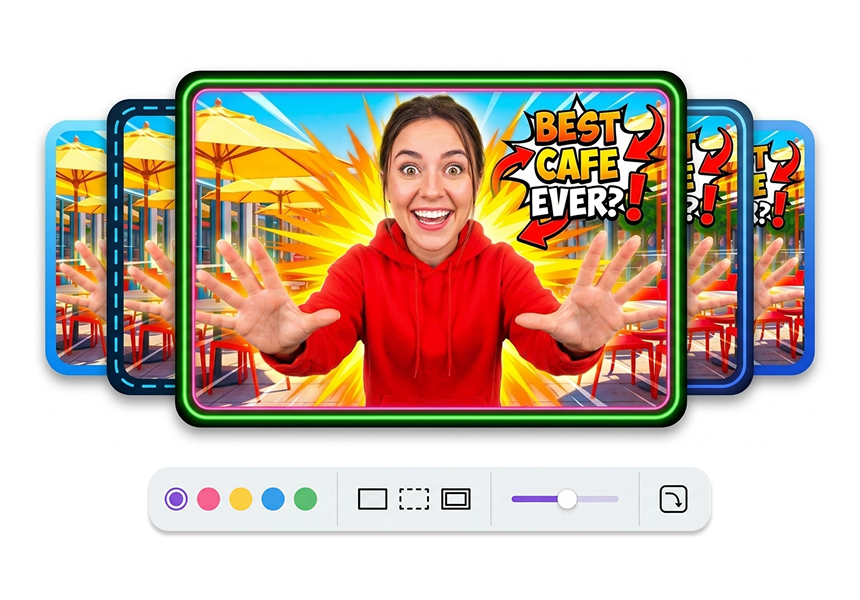
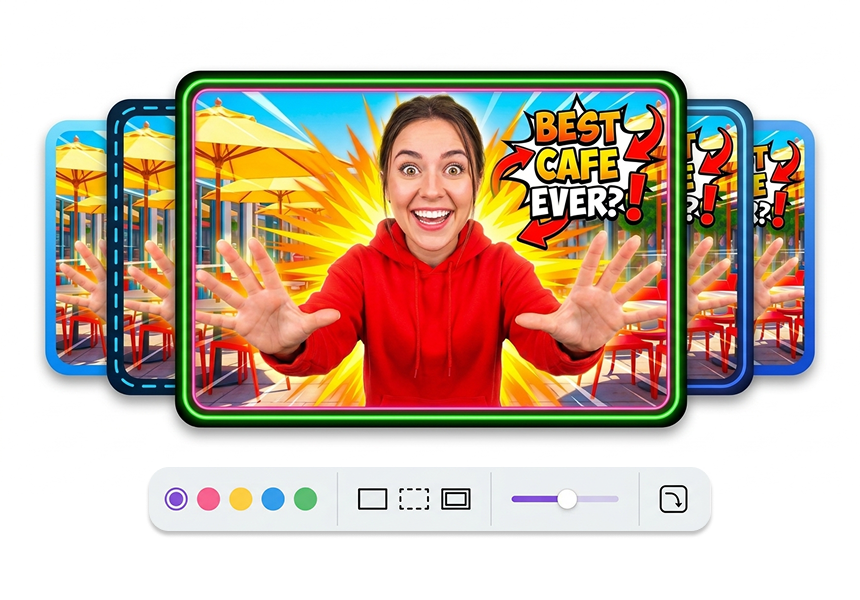
Adjust border width until the frame feels visible without stealing the image's space. Set the corner radius to keep a sharp graphic edge or a softer rounded shape. Give series covers a repeatable edge treatment while preserving room for each episode's subject.
Switch the Line Style
Select solid for a clean outline, dashed for a lighter cue, or double for a more formal frame. Compare the styles against the image before you apply one. Let the line reinforce the tone of a tutorial, reaction, game highlight, or channel series without promising a performance outcome.


Who Uses a YouTube Thumbnail Border Maker?

Video Creators
Use the same border style and color for all videos in a playlist. This helps viewers instantly recognize your channel and click on your next episode.

Cover Designers
Need a quick final touch? Add a border to give the thumbnail a finished look without asking the client to approve a completely new layout.

Gaming and Reaction Creator
Separate your face or gameplay from a busy background. A bright border helps focus the viewer's eye exactly where you want it.
FAQs
What is a YouTube thumbnail border maker?
Can I add a border to an existing thumbnail?
Which image formats can I upload?
Can I make a black border around my YouTube thumbnail?
Which border styles are available?
What does border width change?
What does corner radius do?
Can I use a colored or rainbow thumbnail border?
Finish a YouTube Thumbnail Border Maker Pass
The border is the last line viewers notice, not the whole message. Set its color, weight, curve, and style so it gives your cover a clean finish without crowding the frame.