

YouTube Thumbnail Text Generator
Turn a short video hook into styled YouTube thumbnail text. Choose the font, weight, size, colors, outline, shadow, and placement that suit the image behind it.
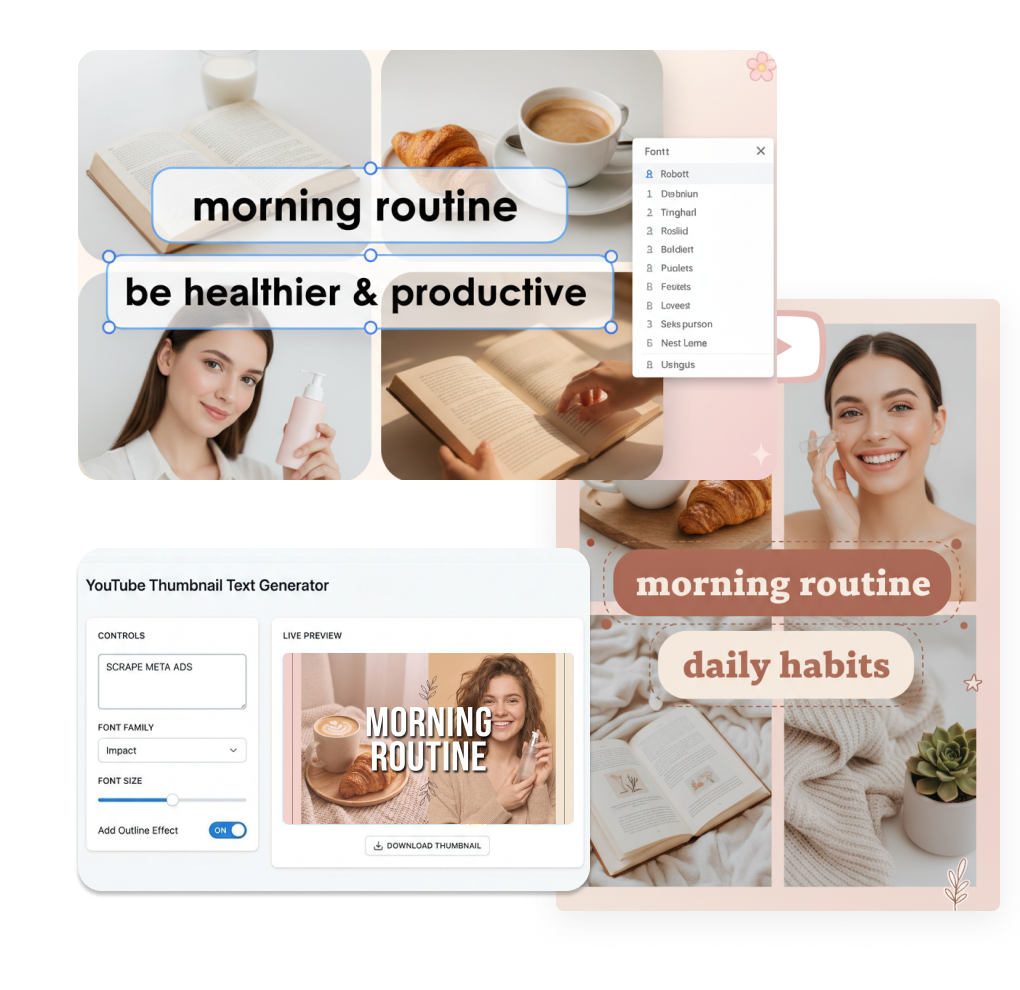
How to Add Text to a YouTube Thumbnail
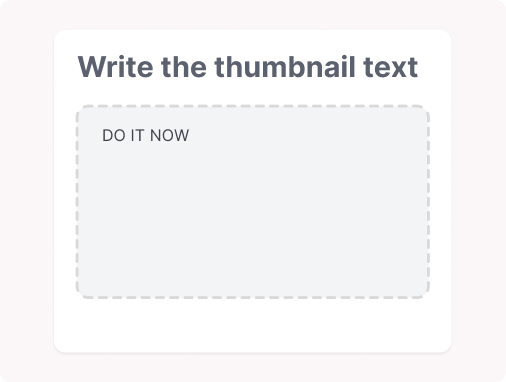
1. Write the thumbnail text
Enter the short phrase you want viewers to notice. Add a name if you want to keep the text layer easy to recognize in your workspace.
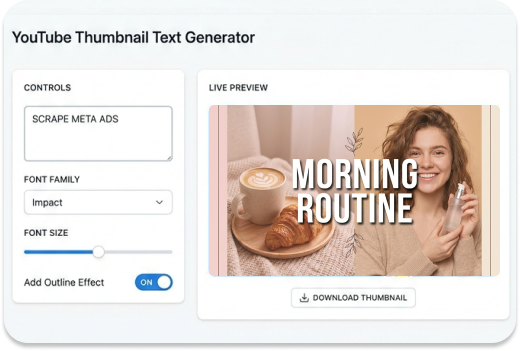
2. Choose its type style
Pick a font and font weight, then adjust size and letter spacing. The controls help you find a treatment that fits the energy of the video without swallowing the image.
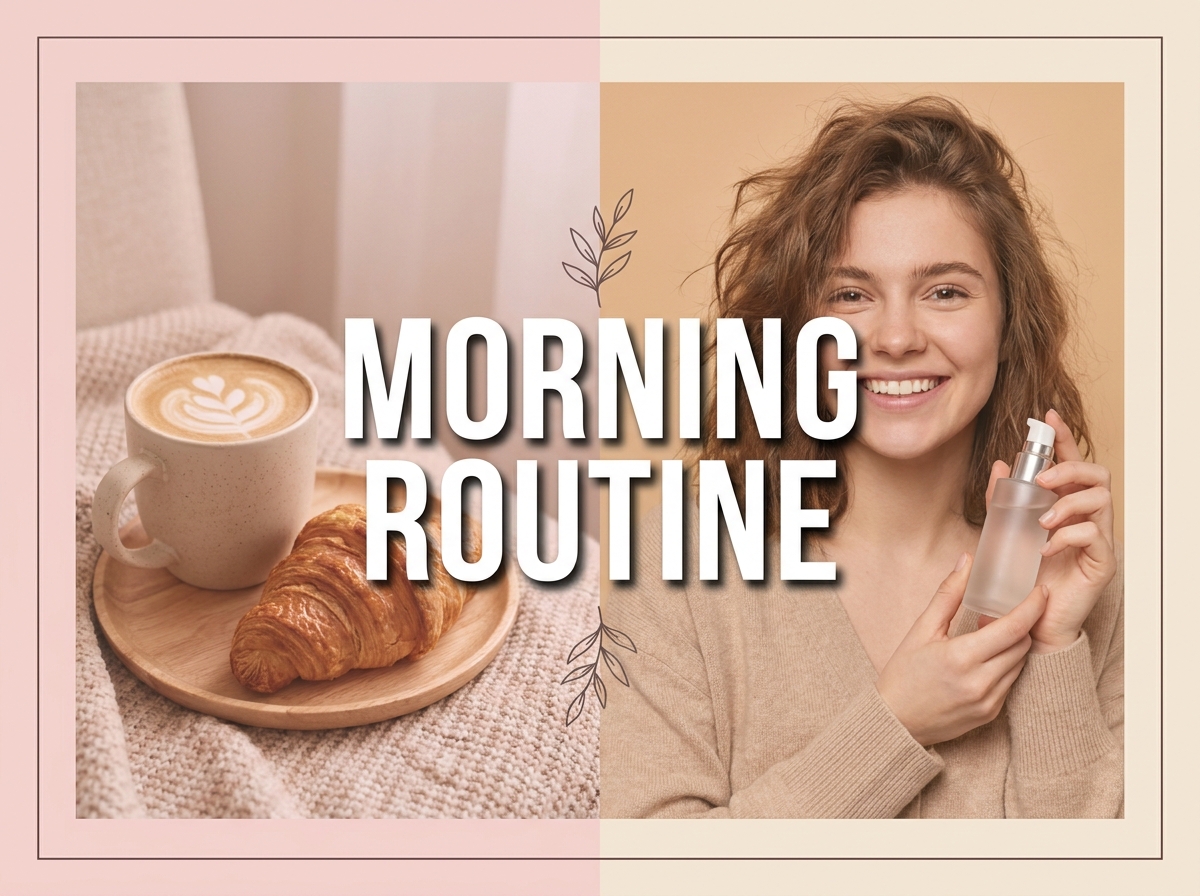
3. Finish the layer
Set the text and outline colors, add a shadow when it helps, and place the layer with the position controls. Keep a transparent background when the words need to sit cleanly over another design.
Build Clearer Thumbnail Text Generator Layers
Start With the Right Hook
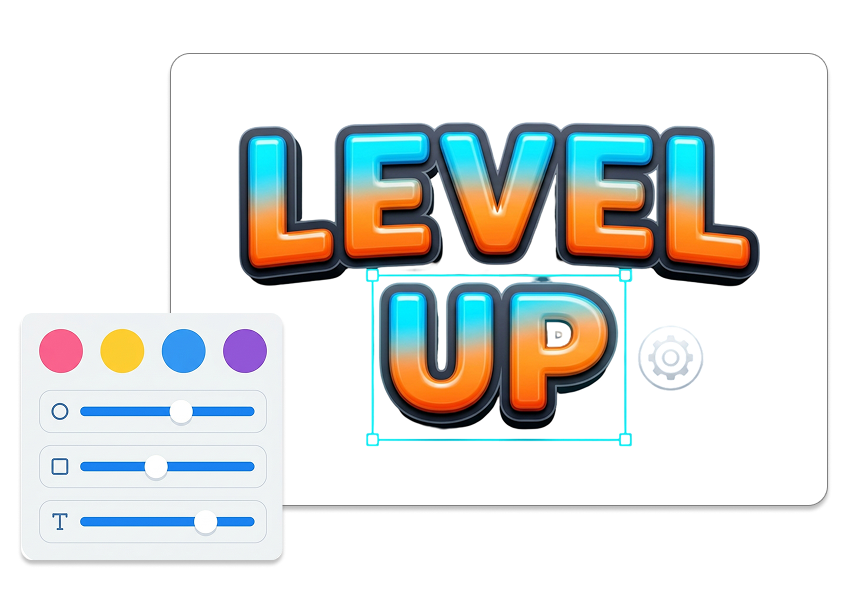
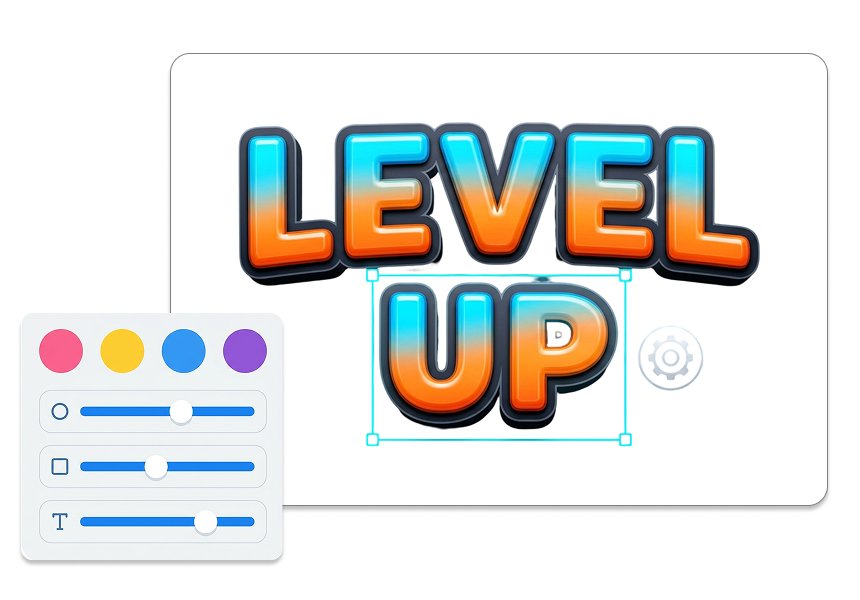
Write the exact text for thumbnail designs you want to show. Keep the phrase focused so it can add a visual cue instead of repeating the entire video title. Shape a clearer first impression with words that support what the image already says.
Choose a Font With Intent
Pick a font that matches the mood of your video, from bold Impact to familiar Arial, Georgia, Courier New, or Trebuchet MS. Set the weight to 400, 700, or 900 and tune letter spacing for the amount of visual room you have. Give tutorials, gaming clips, and personal stories a text treatment that feels considered rather than generic.
Create Separation From the Image
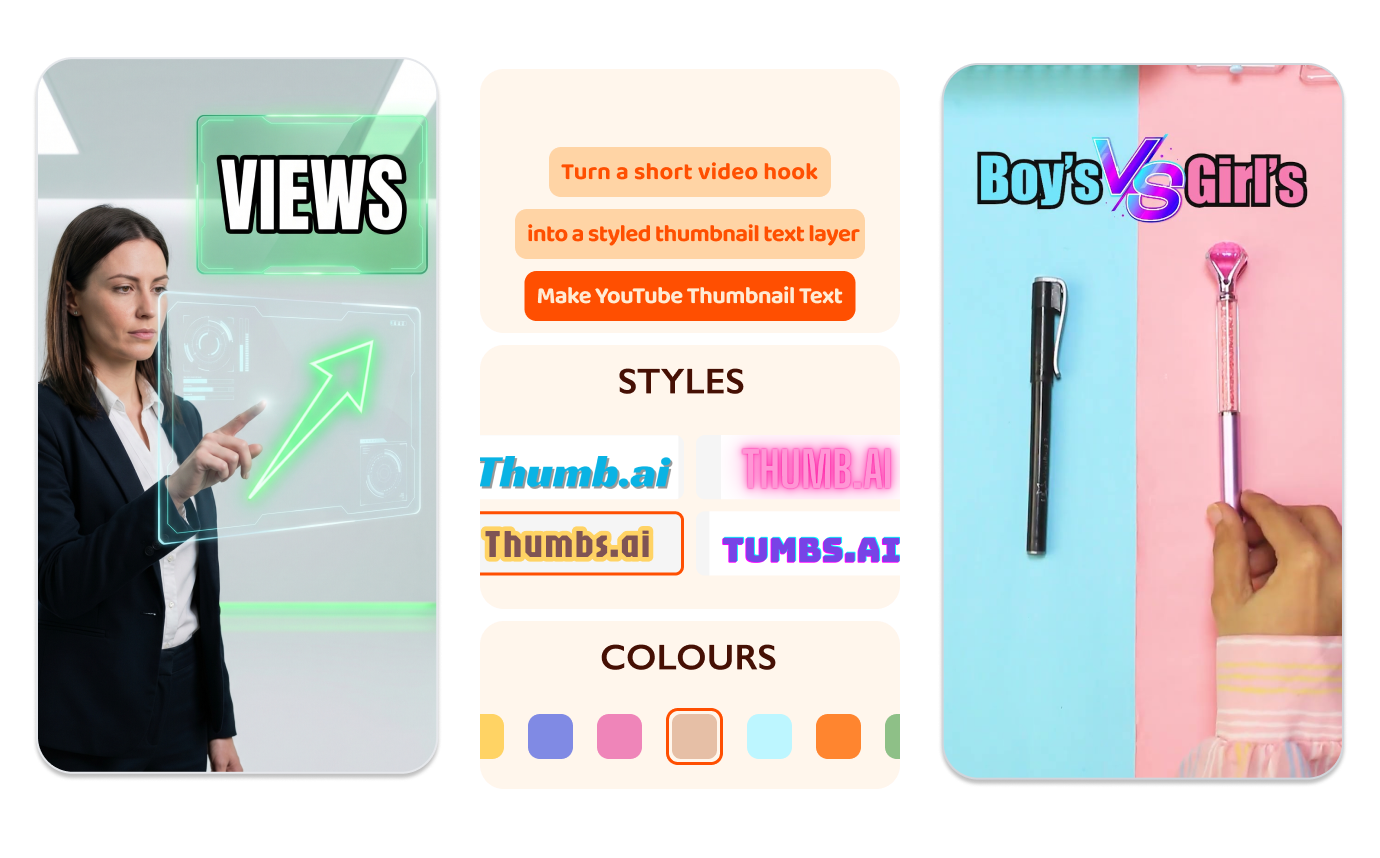
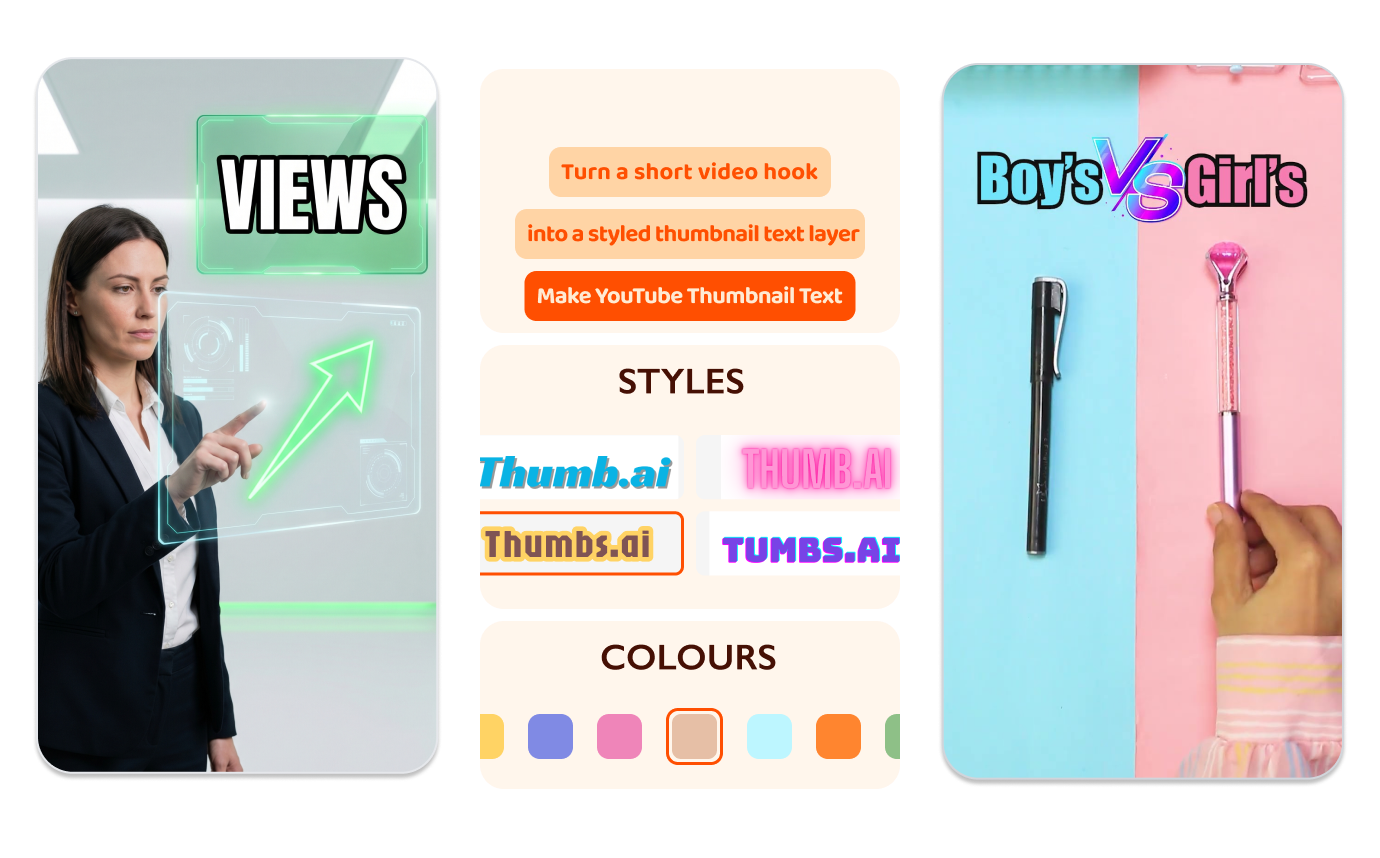
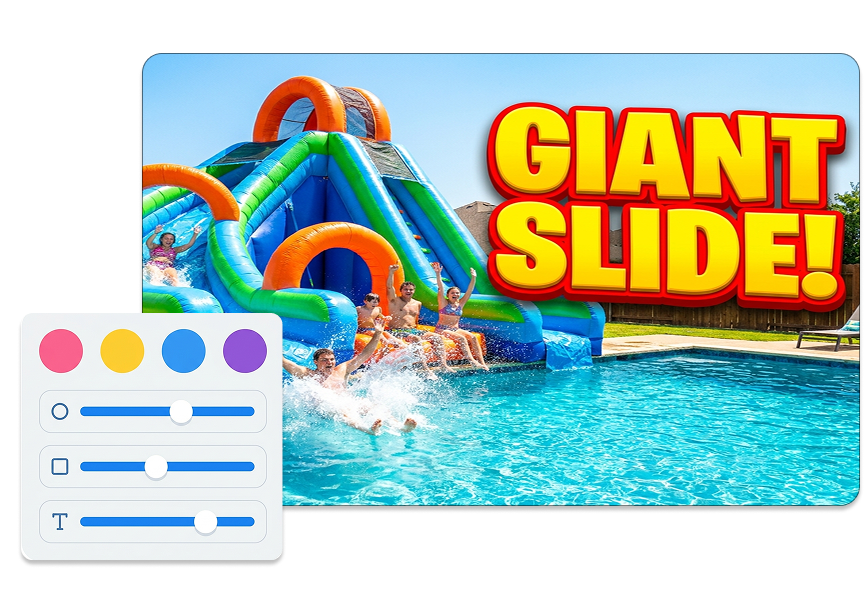
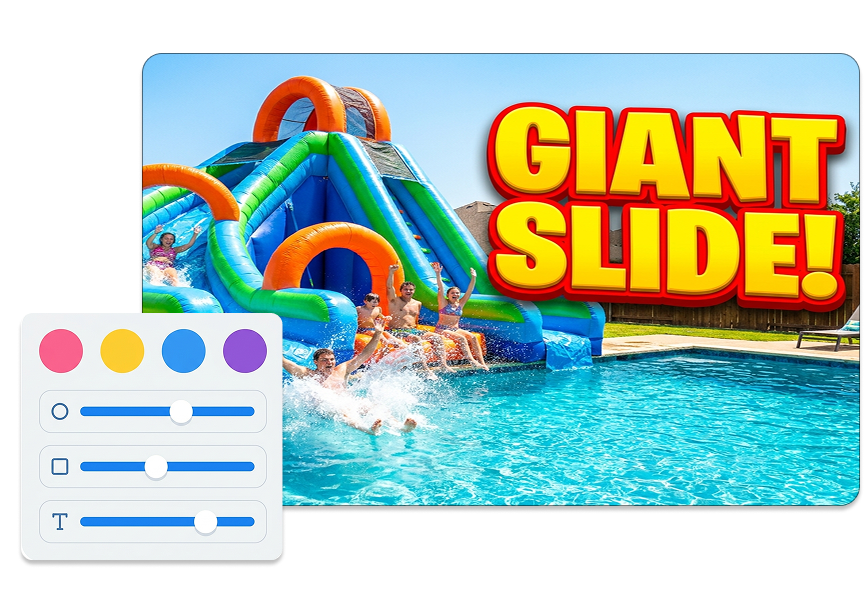
Set the text color and outline color as a pair. Add outline width and a drop shadow when the background makes the letters harder to distinguish. Keep text on YouTube thumbnail artwork easier to scan across bright photos, darker scenes, or busy video frames.
Put Every Word in Place
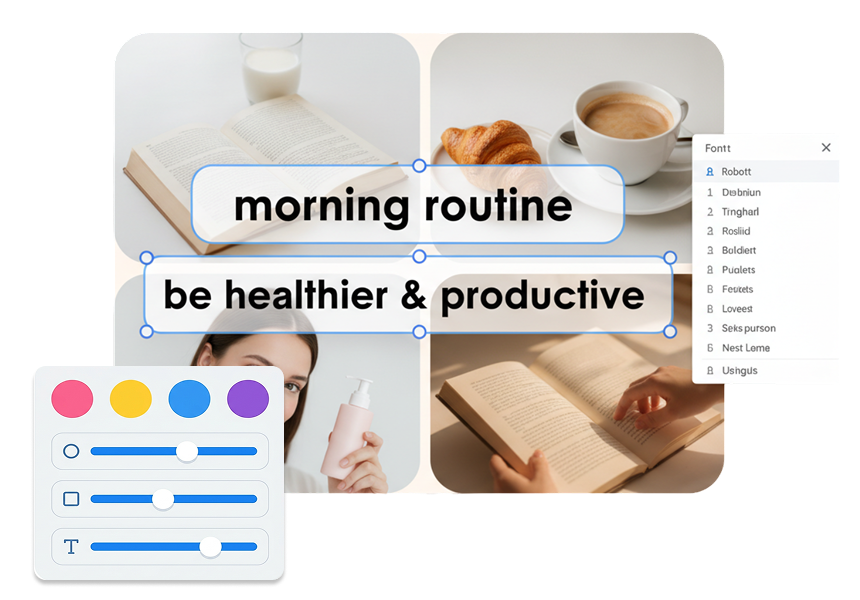
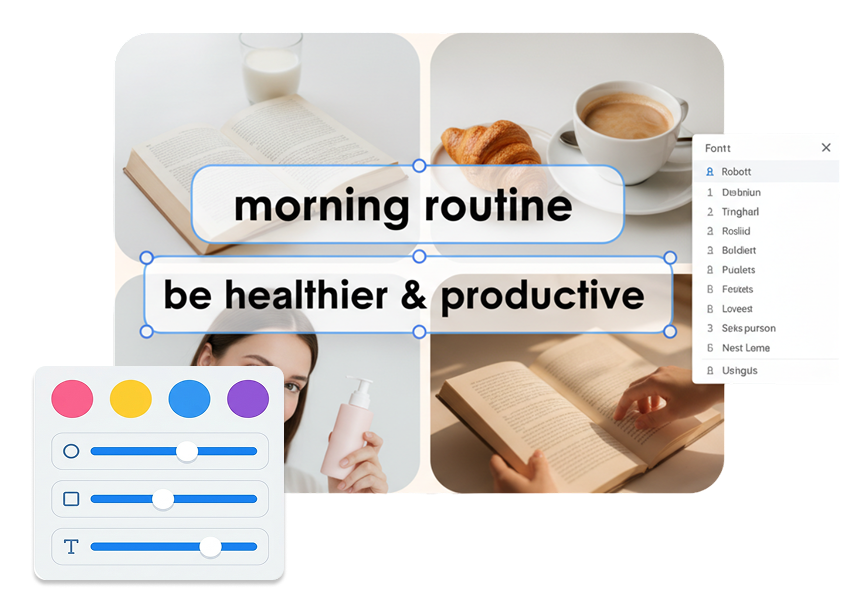
Move the text horizontally and vertically with direct position controls. Center it quickly or refine the placement around a face, product, or key scene detail. Use auto fit and a transparent background to keep the layer ready for the canvas it belongs on.
Who Uses a Thumbnail Text Generator?
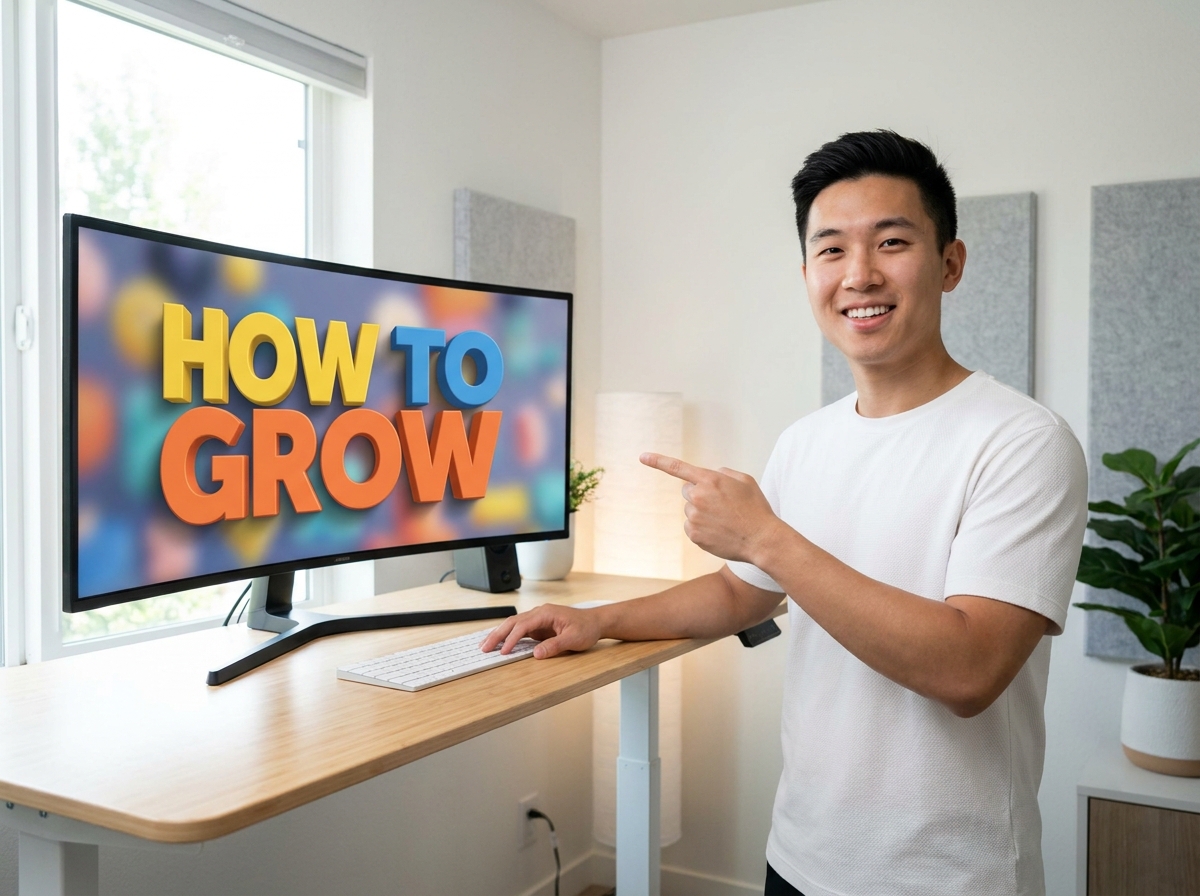
Solo YouTube Creators
Give a new upload a short visual hook without opening a full design suite. Try a heavy font, strong outline, or different placement while you decide how the title and cover should work together.

Thumbnail Designers and Editors
Prepare a clean text treatment for a client cover or a channel system. Adjust the type details separately from the artwork so a revision to the wording, color, or position stays focused.

Gaming, Tutorial, and Commentary Channels
Make event names, challenges, outcomes, and numbers feel at home in a fast-moving frame. Use font weight, spacing, and shadow to give the phrase its own space beside a character, product, or screenshot.
FAQs
What is a YouTube Thumbnail Text Generator?
How much text should a thumbnail have?
Can I add text to YouTube thumbnail designs?
Can I move text around the canvas?
Can I make transparent text for a thumbnail?
What is the best color for YouTube thumbnail text?
Can I create thumbnail text for free?
Does the tool work for YouTube Shorts?
Finish Your YouTube Thumbnail Text Layer
The phrase is only one part of the cover. Give your YouTube thumbnail text the weight, contrast, and placement that let it play its part without crowding the image.