Free YouTube Banner Generator Online

Pick a template, type your channel name and download a banner that never gets cropped. Safe-area guides and device previews show exactly how it looks on TV, desktop and mobile before you upload.

Size guide

YouTube Banner Size: 2560 × 1440 and the 1546 × 423 Safe Area

YouTube asks for one image but shows a different part of it on every screen. Upload 2560 × 1440 pixels, keep your channel name and logo inside the center 1546 × 423 area, and treat everything else as background that may be hidden.

TV · 2560 × 1440
Desktop · 2560 × 423
Tablet · 1855 × 423
Safe area · visible everywhere
1546 × 423
To scale: the full image appears on TVs, the blue band on desktops, the dashed area on tablets and only the green safe area on phones.

YouTube banner specs at a glance

Recommended size
2560 × 1440 px
Minimum size
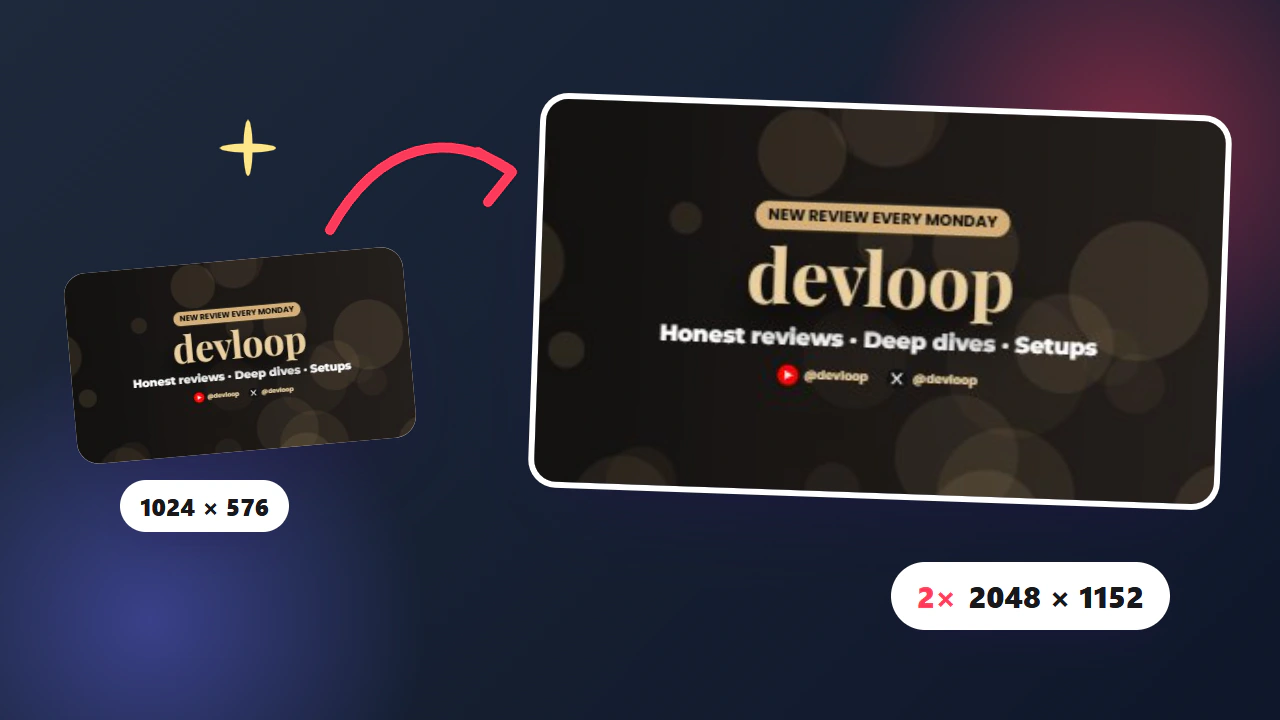
2048 × 1152 px
Safe area
1546 × 423 px
Visible on desktop
2560 × 423 px
Visible on tablet
1855 × 423 px
Aspect ratio
16:9
Max file size
6 MB
File types
JPG · PNG · GIF · BMP

On TV: the full 2560 × 1440

Smart TVs and consoles show the entire image as a background. This is the only place your outer artwork is seen, so fill it with scenery, gradients or patterns — never with text.

On desktop: a 2560 × 423 strip

Computers crop the top and bottom and show a wide band through the middle. On narrower browser windows the sides are trimmed too, down toward the safe area.

On mobile: only 1546 × 423

Phones show the smallest slice — exactly the safe area. Most of your viewers watch on mobile, so this is where your name, logo and schedule must live.

Why does YouTube crop my banner?

YouTube uses one responsive banner for every screen. A 16:9 image fits a TV, but channel pages on computers and phones only have room for a short, wide strip, so YouTube scales the image and cuts away the top, bottom and sides. If your text sits outside the 1546 × 423 center, it disappears on phones. Designing inside the safe area — which this generator checks for you automatically — is the only reliable fix.

Templates

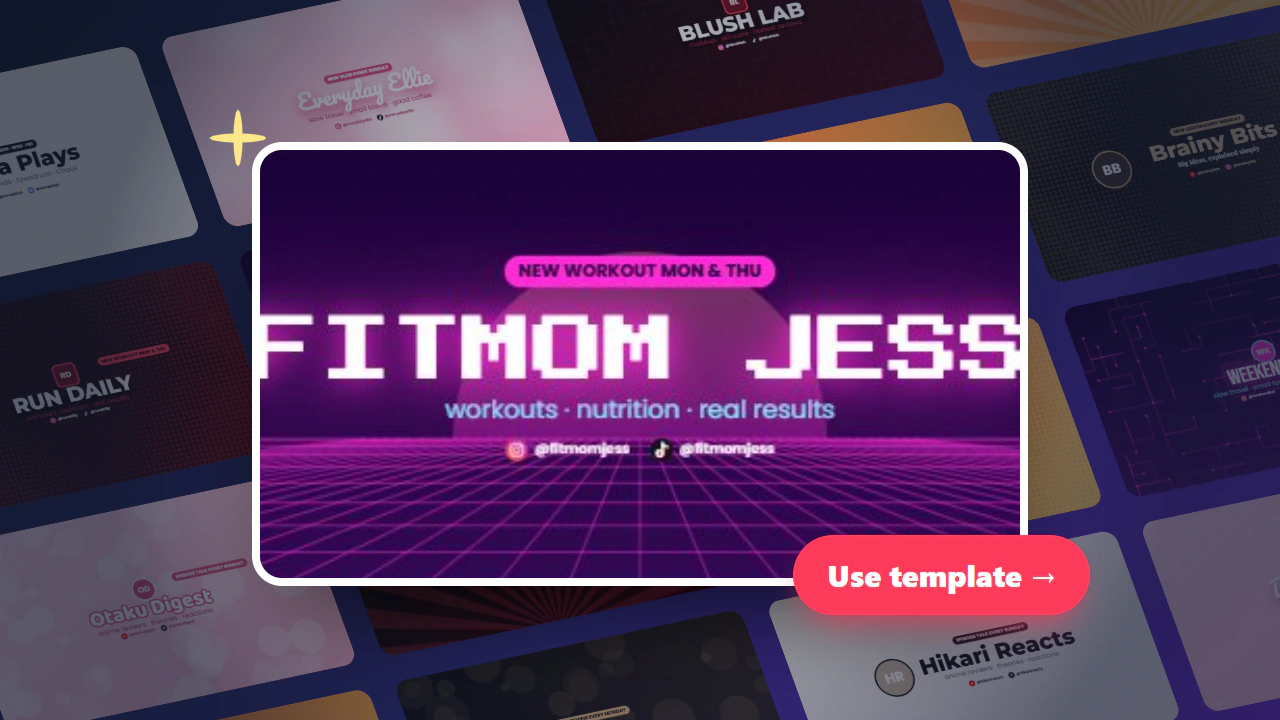
YouTube Banner Templates for Every Kind of Channel

Every template is built at 2560 × 1440 with all text inside the safe area. Choose your niche, click a design and it opens in the editor with your channel name ready to change.

Gaming YouTube banners

Neon grids, bold block letters and stream schedules for Let's Play, FPS, Minecraft and esports channels.

Vlog YouTube banners

Warm, personal looks for daily vloggers, travel channels and lifestyle creators.

Beauty & fashion banners

Soft blush tones and elegant serif type for makeup, skincare and fashion channels.

Tech YouTube banners

Clean, modern layouts for reviews, coding tutorials, gadgets and setup tours.

Education banners

Clear, friendly designs for teachers, tutors, study channels and explainers.

Music YouTube banners

Soundwaves, stage lights and lo-fi moods for artists, producers and cover channels.

Anime YouTube banners

Pastel skies and manga-style halftones for anime reviews, AMVs and reaction channels.

Kids channel banners

Bright, playful colors and rounded type for family, learning and bedtime story channels.

How it works

How to Make a YouTube Banner in 4 Steps

No design experience or software needed — everything runs in your browser.

  1. 01

    Pick a template

    Filter by channel type — gaming, vlog, anime, education and more — and click the design that fits your style.

  2. 02

    Make it yours

    Type your channel name and tagline, upload your logo, swap the background and add your socials and upload schedule.

  3. 03

    Check every device

    Switch between TV, desktop, tablet and mobile. If anything leaves the safe area you will see a warning and a one-click fix.

  4. 04

    Download and upload

    Export a 2560 × 1440 PNG or JPG, automatically kept under YouTube's 6 MB limit, and upload it straight to YouTube Studio.

How to upload your banner to YouTube

Once your banner is downloaded, setting it live takes less than a minute. You can do it on a computer or in the YouTube app.

  1. 1Open YouTube Studio and sign in to your channel.
  2. 2Click Customization in the left menu, then open the Profile tab.
  3. 3Under Banner image, click Upload (or Change) and select the file you downloaded here.
  4. 4Check the TV, desktop and mobile preview, then click Done. Your text should already sit inside the highlighted area.
  5. 5Click Publish. It can take a few minutes for the new banner to appear everywhere.

Design tips

YouTube Banner Tips That Survive Every Screen

Keep text in the center

Your name, logo and schedule belong inside 1546 × 423. Use the outer area only for background art.

Say what you post

A short tagline like “Minecraft builds every week” tells new visitors in one second why they should subscribe.

Add an upload schedule

“New videos every Friday” sets expectations and gives viewers a reason to come back.

Use big, bold type

On a phone the banner is only a few centimeters tall. Thin or small fonts become unreadable.

Match your thumbnails

Reuse the same colors and fonts across your banner, avatar and thumbnails so your channel feels recognizable.

Mind the profile picture

Your avatar is shown next to the banner, not on it. You don't need to repeat it — a logo inside the banner is optional.

FAQ

YouTube Banner FAQ

Quick answers to the most common questions about YouTube banner size, cropping and uploading.

What size is a YouTube banner?

The recommended YouTube banner size is 2560 × 1440 pixels (16:9). The minimum upload size is 2048 × 1152 pixels and the file must be 6 MB or smaller. Keep text and logos inside the 1546 × 423 safe area in the center.

Why is my YouTube banner cropped?

YouTube shows the full image only on TVs. Desktops show a 2560 × 423 strip, tablets 1855 × 423 and phones just the 1546 × 423 center. Anything outside that center can be cut off. This generator highlights the safe area and warns you before you download.

How does a YouTube banner look on mobile?

On phones only the central 1546 × 423 pixels are visible, shown as a thin strip above your channel name. Use the Mobile preview in the editor to see exactly what your viewers will see.

What is the YouTube banner safe area?

The safe area is the 1546 × 423 pixel rectangle in the middle of the 2560 × 1440 banner. It is the only part guaranteed to be visible on every device, so it is where your channel name, tagline and logo should go.

How do I change my YouTube banner?

In YouTube Studio go to Customization → Profile, find Banner image, click Change, choose your new image, check the device preview and click Publish. In the YouTube app, open your channel, tap the edit (pencil) icon and then the camera icon on the banner.

Is this YouTube banner generator free?

Yes. You can use every template, edit text, logo, background and social icons, and download a full 2560 × 1440 banner for free, without signing up.

Should I save my banner as PNG or JPG?

PNG keeps text and flat graphics sharpest; JPG is smaller and works well for photo backgrounds. Both are accepted. If a PNG would exceed 6 MB, this tool automatically saves a compressed JPG so the upload never fails.

Can I make a gaming or anime YouTube banner here?

Yes. There are ready-made gaming templates with neon and block-letter styles and anime templates with pastel and manga looks. You can also upload your own fan art or game screenshot as the background — it is cover-fitted to 2560 × 1440 automatically.

Ready to give your channel a better first impression?

Make a banner that looks right on every screen — free, in your browser, in a few minutes.

Start designing your banner