Design a YouTube Thumbnail in Photoshop
Adobe Photoshop is an image-editing and design app that can be used to build custom YouTube thumbnails. Set up a 16:9 canvas, bring in a video frame or photo, then arrange the subject, headline, and background before export.

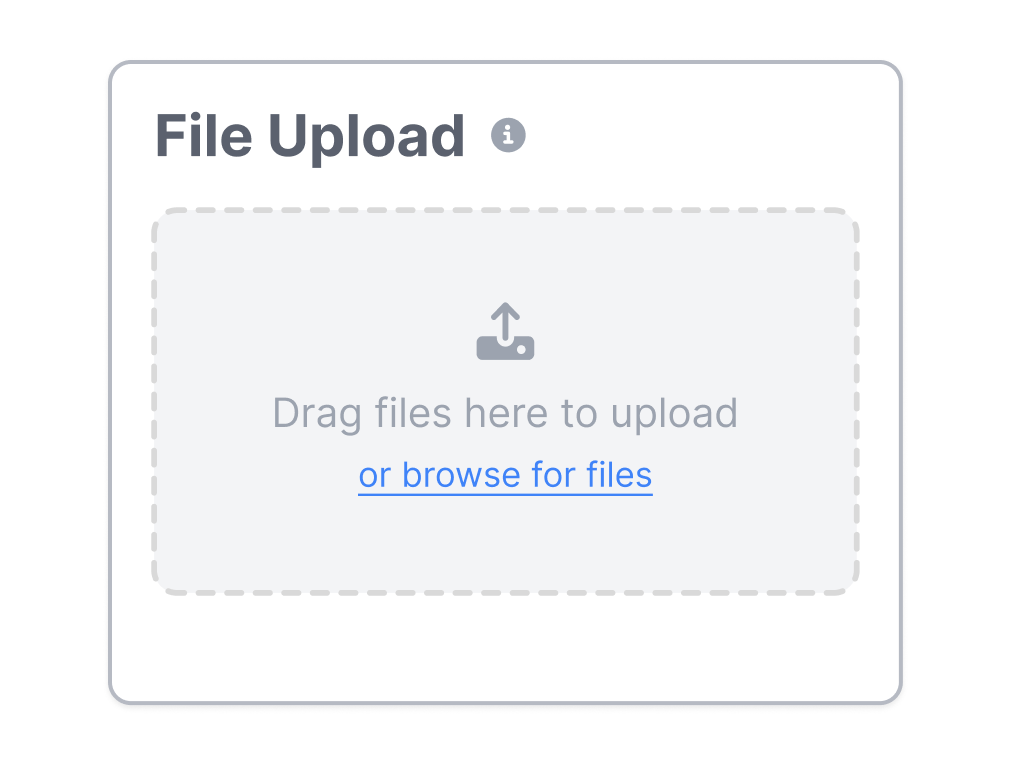
Start with your video link / raw image
Support png, jpeg, jpg, bmp, webp format image

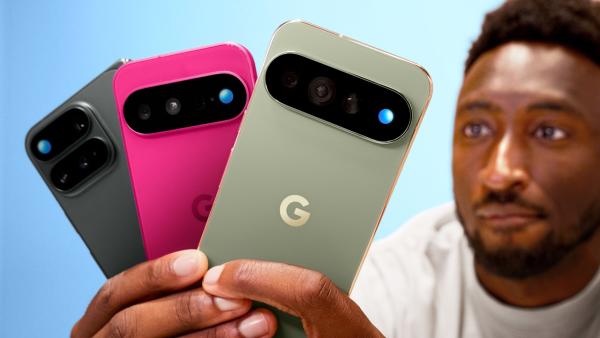

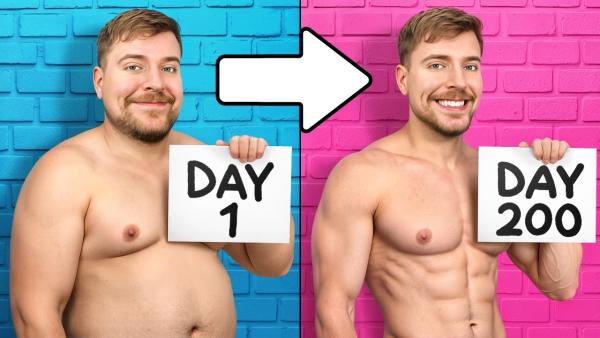


Build Each YouTube Thumbnail in Photoshop
Photoshop gives you exact canvas control, layered photo editing, and reusable design elements for a hands-on thumbnail workflow.


Set Up the Canvas Before You Design
Photoshop lets you enter exact document dimensions for a YouTube thumbnail. Create a 16:9 canvas and place the main subject inside its visible bounds. Save the layered file as a reusable PSD when future videos will share the same structure.
Separate the Subject from the Background
Photoshop provides selection tools, masks, and adjustment layers for building a clear focal image. Place a video frame or photo on its own layer, then refine the edge around the face or object. Adjust the brightness, color, and contrast without changing the original image directly.




Keep the Headline Easy to Update
Photoshop keeps headlines editable on type layers and can store reusable artwork as Smart Objects. Try a short title with clear spacing, then preview the design at a smaller size. Swap the image or text for the next upload and export a JPG or PNG when the cover is ready.
Make a YouTube Thumbnail in Photoshop in 3 Steps
Move from a blank document or layered PSD to an image that is ready for YouTube Studio.
1. Create the Document
Open a new 16:9 Photoshop document or begin with an existing PSD layout. Add a video frame, photo, or background that matches the topic.
2. Build the Composition
Separate the main subject and arrange each visual on its own layer. Add a short headline, then adjust the color and contrast around the focal point.

3. Check and Export
View the thumbnail at a smaller size to check whether the subject and words remain clear. Keep the editable PSD, then export a JPG or PNG for upload.
Who Uses Photoshop for YouTube Thumbnails?
Photoshop can support one-off covers, recurring channel layouts, photo-heavy composites, and client thumbnail systems.
YouTube Creators
Build a custom cover from a video still, portrait, or product photo. Keep the source PSD so later uploads can reuse familiar elements without flattening the whole design.
Gaming and Reaction Channels
Cut a player, character, or face away from a busy screenshot. Place the subject over a cleaner background and add a short reaction or episode hook.
Educators and Reviewers
Arrange a person, object, and concise lesson or review title in separate layers. Update the visual details when the topic changes while keeping the series recognizable.
Designers and Channel Teams
Prepare layered thumbnail files that another editor can open and revise. Smart Objects and named layer groups make recurring images and text easier to replace.
Frequently Asked Questions
What is Adobe Photoshop?
Is Photoshop good for YouTube thumbnails?
Which Photoshop settings matter most?
What font works well for a YouTube thumbnail?
Should I export a thumbnail as JPG or PNG?
Can I reuse a Photoshop thumbnail template?
What is a useful alternative to Photoshop for thumbnails?
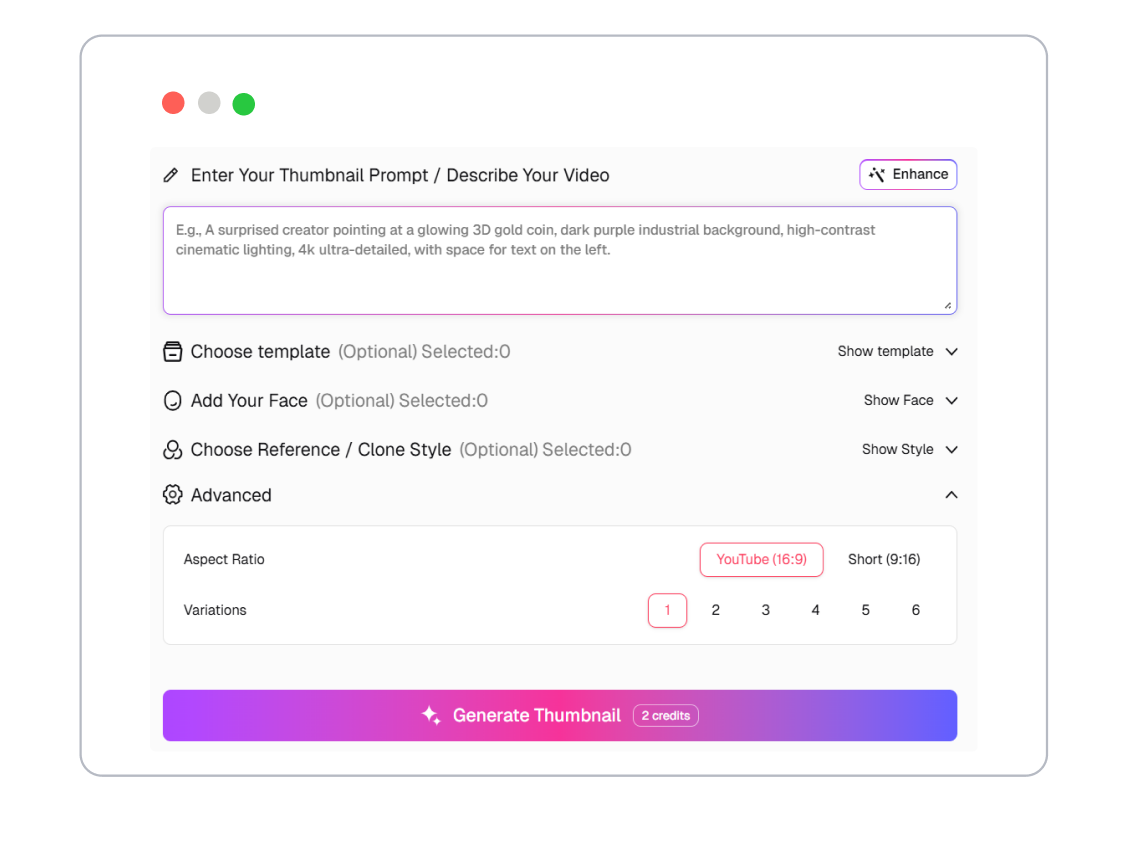
Looking for Another Option? Explore Thumbs.ai as an Adobe Photoshop Alternative.
Use Thumbs.ai to turn text, uploaded images, or YouTube links into thumbnail directions and reusable variations. Work with templates, references, and face-focused tools in one thumbnail workspace.