AI Thumbnail Enhancer Online
Upscale and sharpen YouTube thumbnails to HD in one click. Upload an old or blurry thumbnail, or paste a video link, and AI removes blur and compression noise, restores faces and lettering, and keeps your design exactly as it was.
Try an example
Before & after
Real results from the thumbnail enhancer
Each example started as a small, blurry, heavily compressed thumbnail. Drag the slider to compare, then load one into the tool to try it yourself.
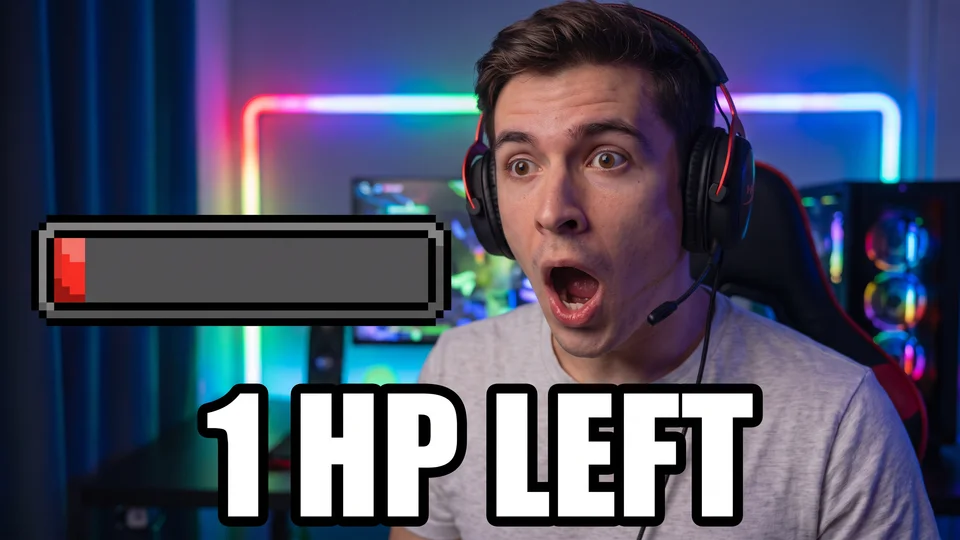 BeforeAfter
Gaming
320×180 → 2560×1440
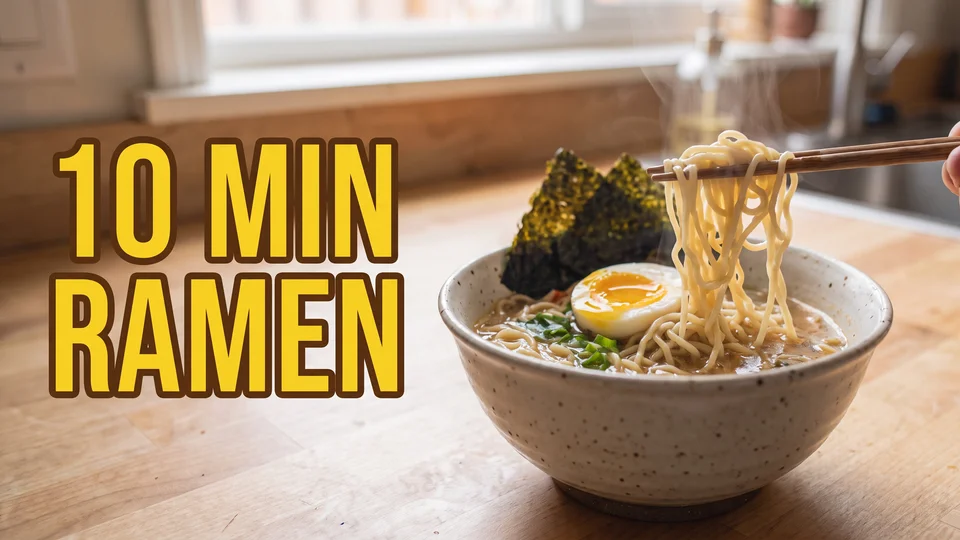 BeforeAfter

Cooking
480×270 → 2560×1440
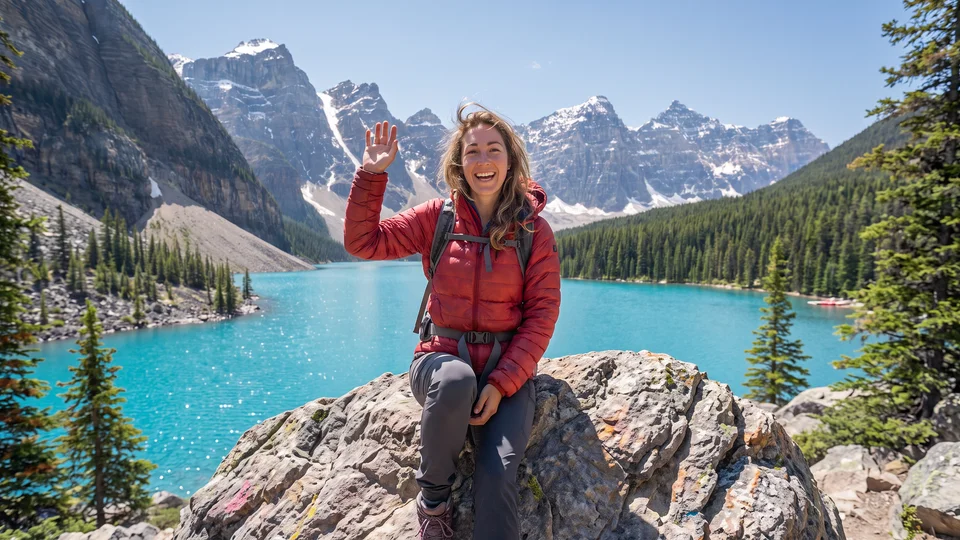 BeforeAfter

Travel vlog
426×240 → 2560×1440
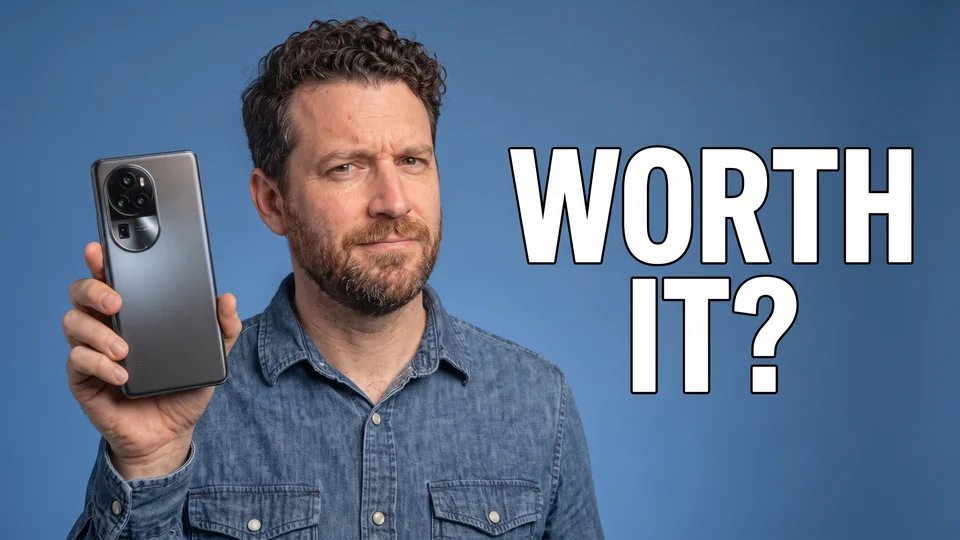 BeforeAfter

Tech review
640×360 → 2560×1440
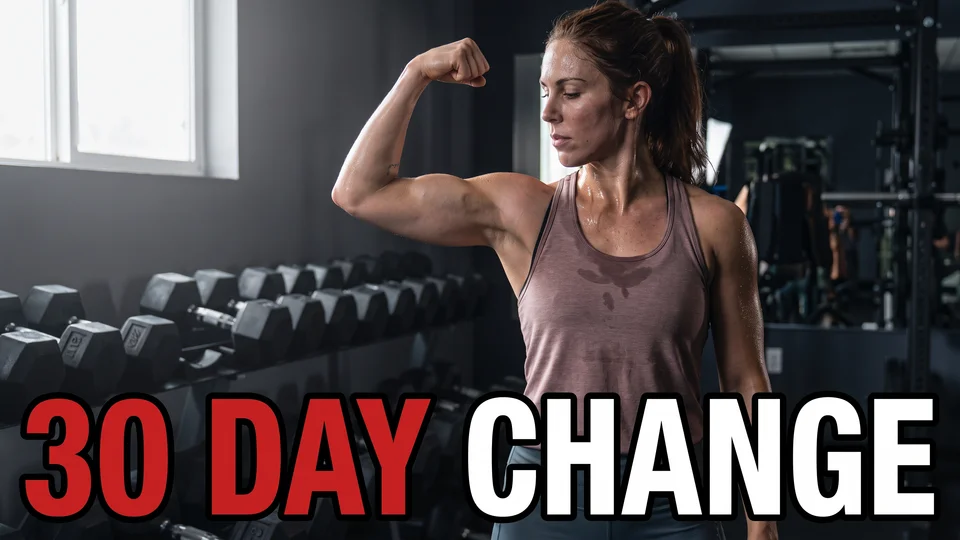 BeforeAfter

Fitness
336×189 → 2560×1440
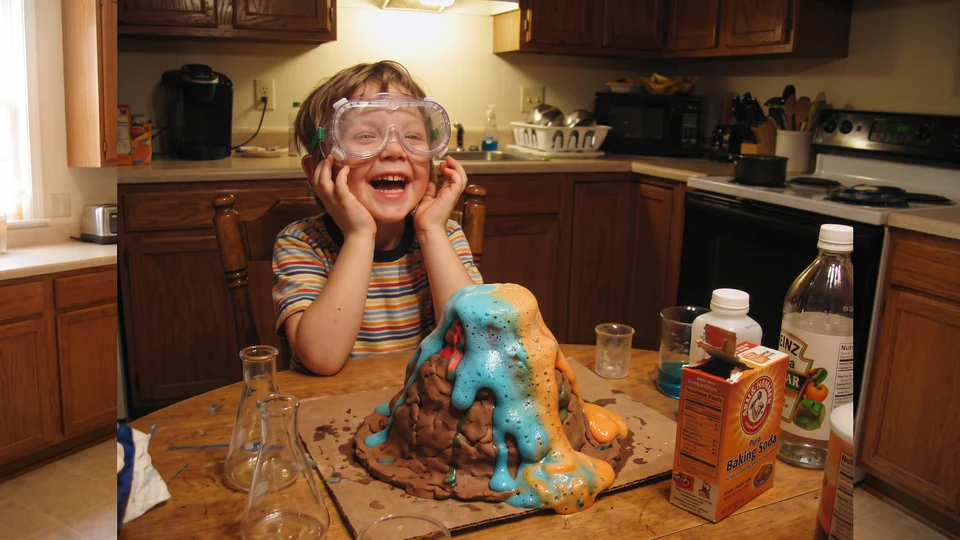 BeforeAfter
Old 4:3
480×360 → 2560×1440
Related Tools
View all tools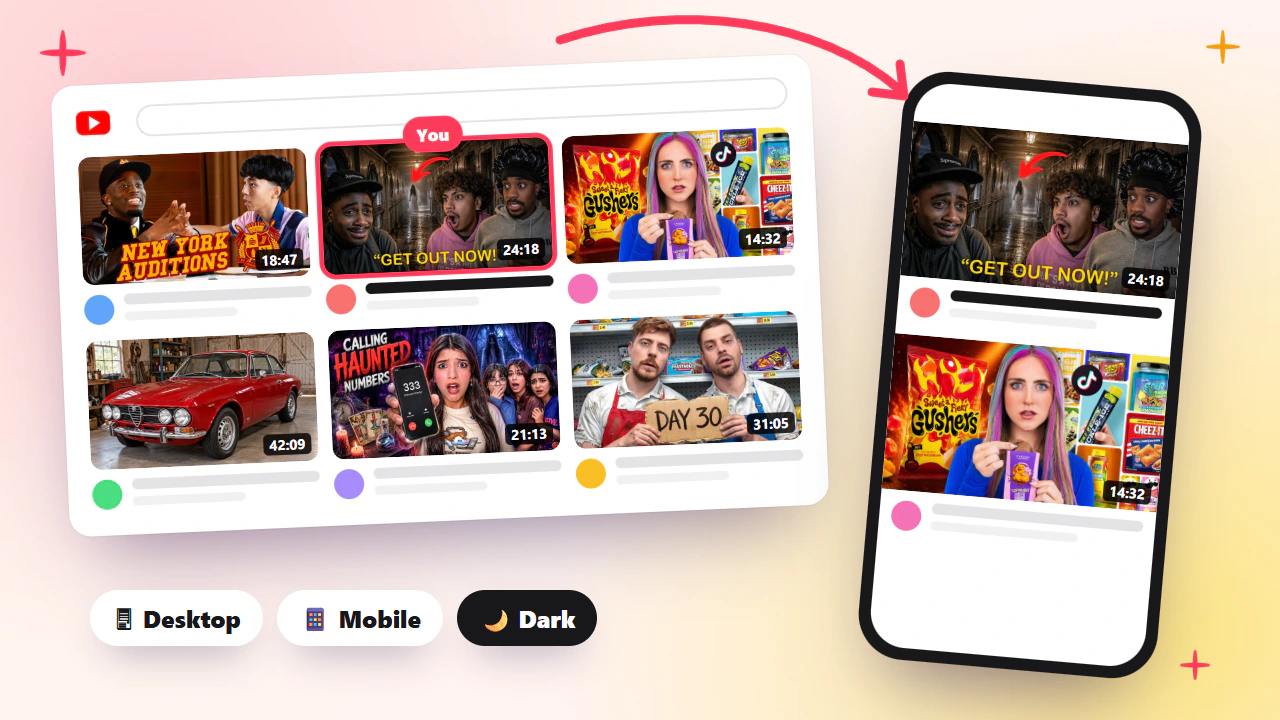
Thumbnail Tester
Preview thumbnails in a realistic YouTube feed and compare up to 4 versions before you upload.
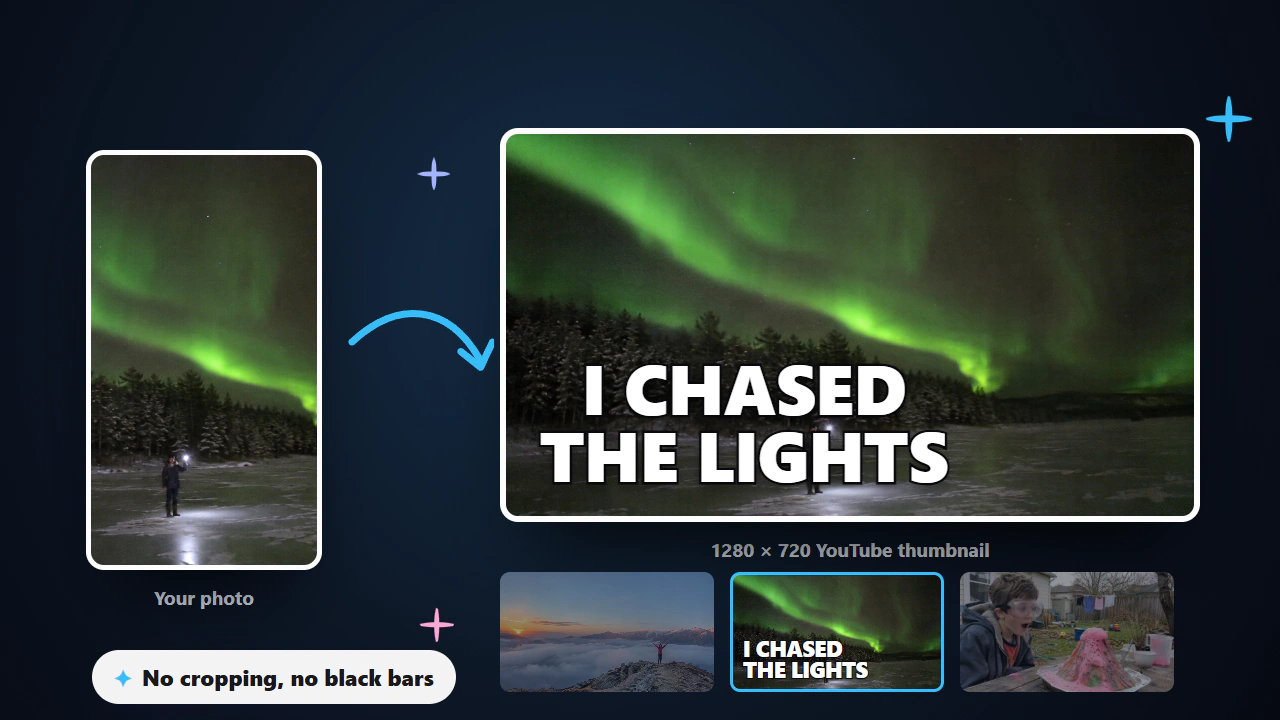
Image to YouTube Thumbnail
Upload any photo or screenshot and AI turns it into a ready-to-upload 16:9 YouTube thumbnail.
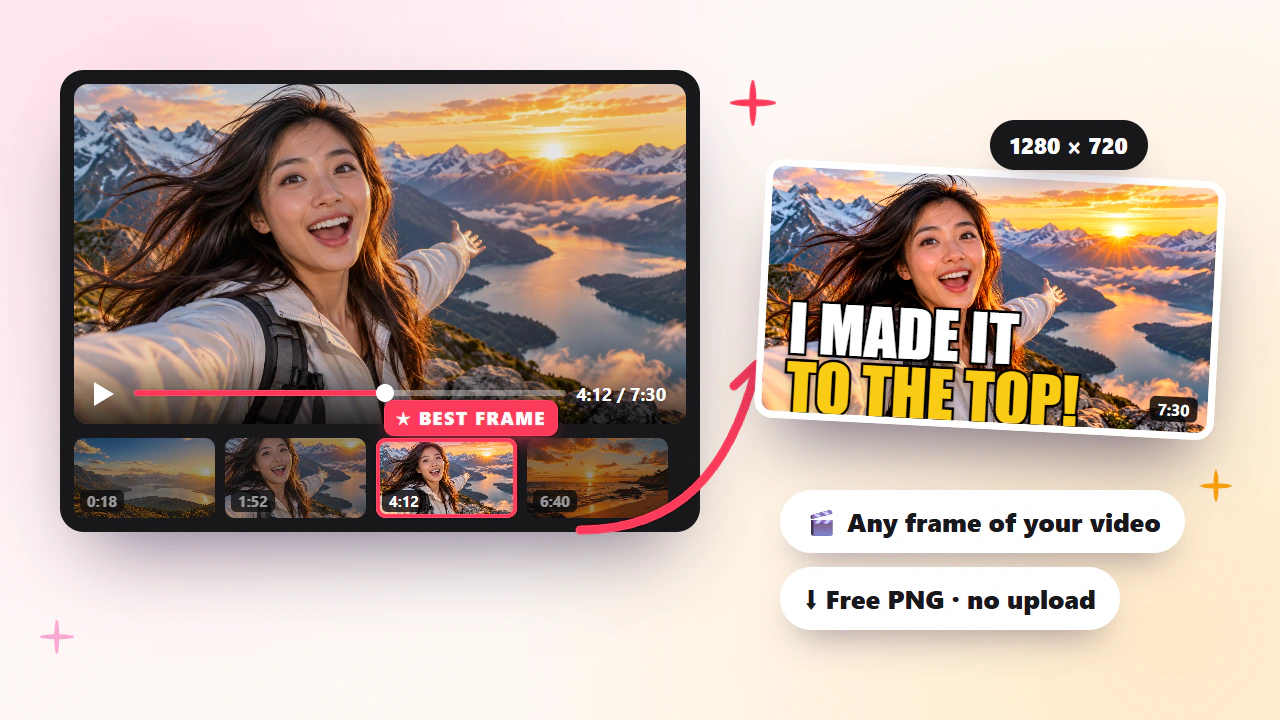
Video Thumbnail
Turn a frame of your video into a thumbnail: best frames picked for you, a bold title and free download.

Thumbnail Design
Design click-worthy thumbnails with niche templates, one-click cutouts, bold text and stickers.
How it works
Enhance a thumbnail in three steps
- 01
Add your thumbnail
Upload the image, or paste a YouTube link to grab the video's current thumbnail for free.
- 02
Pick the output size
HD 1280×720 for YouTube, or 2K / 4K for extra detail. If the image isn't 16:9, choose AI extend or crop.
- 03
Compare and download
Drag the before-and-after slider, check it at real size, then download a YouTube-ready JPG under 2 MB.
What it fixes
Fix a blurry YouTube thumbnail without redesigning it
The thumbnail enhancer is built for the problems creators actually have with old or reused thumbnails. Your layout, text and colors stay the same.
Low resolution and blur
Screenshots, old uploads and 320×180 grabs look soft when YouTube shows them large. AI upscales them to HD and rebuilds sharp edges and fine detail.
Compression noise
Images saved many times pick up JPEG blocks, banding and color noise. The enhancer cleans them up so gradients and skies look smooth again.
Soft faces and lettering
Faces and big words carry most thumbnails. AI restores eyes, hair and skin texture and makes lettering crisp, while keeping the same person and the same words.
Wrong aspect ratio
Old 4:3 or square images get black bars on YouTube. Let AI extend the scene to 16:9, or crop the center, in the same step.
Thumbnail tips
Make every thumbnail look sharp on every screen
A clear thumbnail is not only about pixels. These simple rules help your enhanced thumbnail work as hard as possible.
Use 1280×720, 16:9
YouTube recommends at least 1280×720 pixels in 16:9. The YouTube download keeps the file under 2 MB, so it uploads from both desktop and the mobile app.
Start from the best source you have
If you still have the original design file or a sharp frame from the video, enhance that instead of a screenshot of a screenshot. Better input gives a more faithful result.
Check it small
Most people see your thumbnail at phone size. After enhancing, look at the real-size preview: if a word or face doesn't read there, simplify the design.
Keep it true to the video
The enhancer only improves quality; it doesn't add new things. Make sure the thumbnail still shows what really happens in your video.
FAQ
Thumbnail enhancer FAQ
What does the thumbnail enhancer do?
It uses AI to upscale your thumbnail to HD (1280×720), 2K or 4K, remove blur and JPEG compression noise, and restore faces and text. It keeps the same picture, so your layout, words and colors don't change.
How do I fix a blurry YouTube thumbnail?
Upload the thumbnail or paste the video link, choose HD 1280×720, and click Enhance thumbnail. Compare the result with the slider, then download the YouTube version and upload it in YouTube Studio.
What size should a YouTube thumbnail be?
YouTube recommends 1280×720 pixels (16:9). The enhancer's YouTube download is exactly 1280×720 and under 2 MB, which works on both desktop and the YouTube mobile app.
Can I enhance the thumbnail of a video that's already published?
Yes. Paste the video link and we load its current thumbnail for free. Enhance it, download the new file and replace the thumbnail in YouTube Studio.
Will AI change my text or my face?
The enhancer is told to keep every person, word and color exactly as they are, and each result is checked automatically. If something may look different, you'll see a "Check the result" note so you can compare before you use it.
My image is 4:3 or square. Will it work?
Yes. Choose AI extend to continue the scene on both sides until it fills 16:9, or Crop to keep the center. Either way you get a thumbnail without black bars.
Is the thumbnail enhancer free?
Loading an image, comparing and downloading are free. Each AI enhancement uses credits, shown on the button before you click. If an enhancement fails, the credits are refunded.
Is there a watermark?
No. Every enhanced thumbnail downloads without a watermark, in both the YouTube size and full size.
What happens to the images I upload?
Your image is only uploaded when you click Enhance, so AI can process it. Results are saved to your account so you can download them again later.