Image to YouTube Thumbnail AI Tool
Upload a photo, screenshot or phone picture and convert your image to a YouTube thumbnail in one step – AI extends it to 16:9, makes it stand out and adds a title.
Drop your image here
Any photo works – vertical phone shots, square images, screenshots. AI turns it into a 16:9 YouTube thumbnail and keeps people looking like themselves.
JPG, PNG, WebP, AVIF, GIF · up to 30 MB · or paste with Ctrl+V
Or try an example
Only use photos you own or have permission to use. Your image is used only to create your thumbnails.
Related Tools
View all tools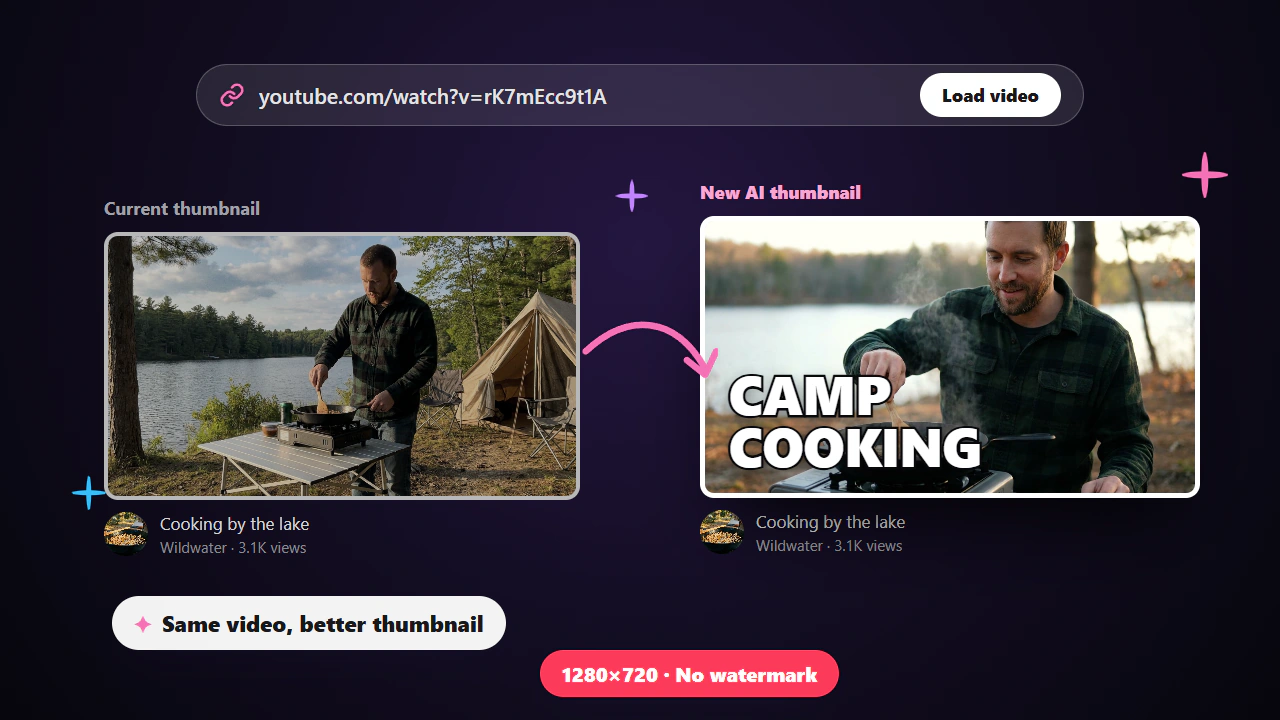
AI Thumbnail from YouTube Link
Paste a video link and turn a real frame from it into a new AI thumbnail.
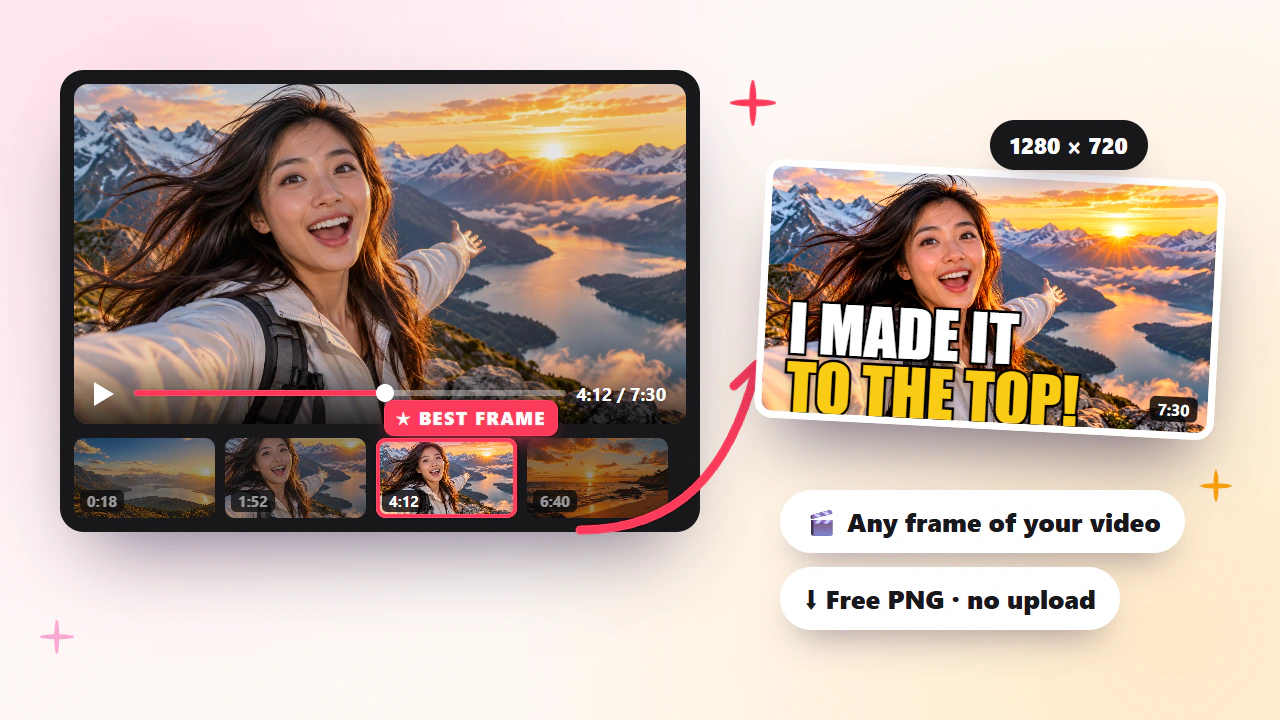
Video Thumbnail
Turn a frame of your video into a thumbnail: best frames picked for you, a bold title and free download.
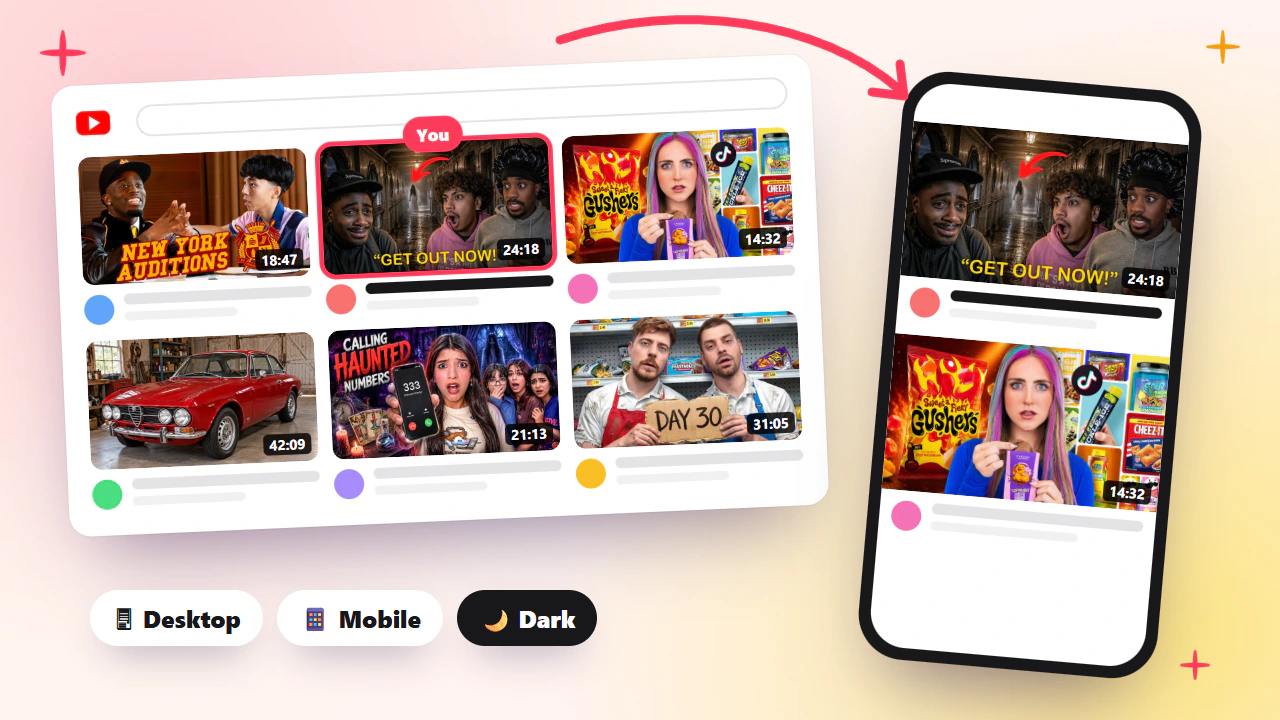
Thumbnail Tester
Preview thumbnails in a realistic YouTube feed and compare up to 4 versions before you upload.

Thumbnail Design
Design click-worthy thumbnails with niche templates, one-click cutouts, bold text and stickers.
What AI does
Image to YouTube thumbnail, done by AI
No templates or styles to pick. This image to YouTube thumbnail converter looks at your picture – a selfie, a game, a product, food – and designs the thumbnail the way creators in that genre do.
Extends it to 16:9
Vertical, square or oddly cropped images are extended to 16:9 by continuing the scene – no black bars, no blurry stretched sides.
Makes it stand out
Better light, contrast and color, a calmer background and a subject that pops at small sizes in the feed.
Adds a title that reads
From your video title AI writes 2–5 big words, or prints your exact text. Spelling is checked and fixed automatically.
Keeps you looking like you
Faces, products and logos stay the same. Every result is checked, and a version where a face changed is redone for free.
How it works
Image to YouTube thumbnail in three steps
No editing skills needed – upload, generate, pick.
- 01
Upload your image
Drop in a photo, a screenshot or a phone picture in any shape. Add your video title if you want text on the thumbnail.
- 02
Get several versions
AI turns your image into YouTube thumbnail versions with different looks. Turn on Keep my photo unchanged if it must stay exactly the same.
- 03
Pick, tweak and download
Compare with the original, preview it in the YouTube feed, change the text or describe an edit, then download 1280×720 under 2 MB.
Any image size
Image to YouTube thumbnail for every image shape
YouTube thumbnails are 16:9. The striped areas show what AI adds for each kind of image.

Vertical phone photos (9:16)
The most common case. AI fills both sides with matching scenery and usually makes the person larger so the face still reads small.

Square images (1:1)
Instagram-style posts and product shots get wider on both sides, with room for a title next to the subject.
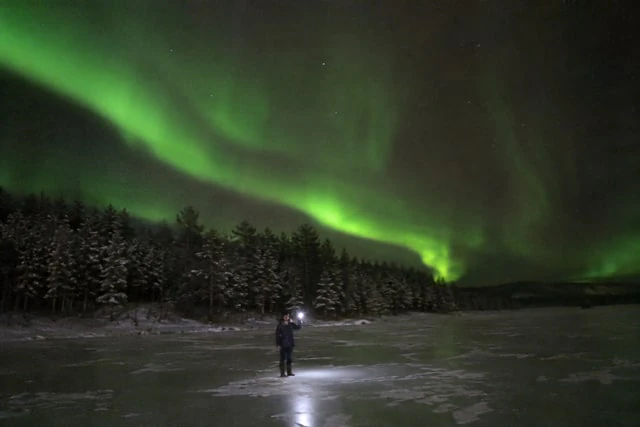
Classic photos (4:3, 3:2)
Camera and night photos only need a little extra width, so the image to YouTube thumbnail change looks seamless – AI also cleans up noise in dark shots.
Already 16:9
Photos that are already 16:9 keep their framing; AI focuses on making them pop – a cleaner background, better light – and adding a title.
YouTube thumbnail specs
What your YouTube thumbnail needs
Every image to YouTube thumbnail download already meets these requirements from YouTube Help.
| Size | 1280×720 (standard download) or 1920×1080 (HD). Minimum width is 640 px. |
|---|---|
| Aspect ratio | 16:9 – any image you upload is converted. |
| File size | Up to 2 MB when uploading from the YouTube app; the standard download always stays under 2 MB. |
| Format | JPG. You can upload JPG, PNG, WebP, AVIF or GIF images. |
| Safe area | Keep faces and text out of the bottom-right corner, where YouTube shows the video length. AI does this for you. |
FAQ
Image to YouTube thumbnail FAQ
How do I convert an image to a YouTube thumbnail?
Upload your image, optionally add your video title, and click Make thumbnails. AI converts the image to a 16:9 YouTube thumbnail with a title and gives you several versions to pick from.
Will AI change my face?
No – people are kept the same person. Every result is checked against your original, and if a face looks different the thumbnail is regenerated for free. You can also turn on Keep my photo unchanged.
Can I use a vertical phone photo?
Yes. Vertical 9:16 photos are the most common image to YouTube thumbnail case: AI extends both sides with matching scenery instead of adding black bars or blurry edges.
What if I only want to resize my image to 16:9?
Turn on Keep my photo unchanged and choose No text. AI only fills the missing area to reach 16:9 and improves sharpness; your original pixels stay as they are.
Can I choose the text on the thumbnail?
Yes. Let AI pick 2–5 words from your video title, type your exact text, or choose no text. After generating, Change text replaces only the words.
What size is the YouTube thumbnail I download?
The standard download is 1280×720 JPG under 2 MB, which works for every YouTube upload. An HD 1920×1080 version is available for desktop uploads.
Which image formats can I upload?
JPG, PNG, WebP, AVIF and GIF up to 30 MB. iPhone HEIC photos open in Safari; in other browsers, save them as JPG first.
How much does it cost?
Each image to YouTube thumbnail version uses credits, and failed versions are refunded. Comparing, previewing in the feed and downloading are free.
Can I download a thumbnail from a YouTube video instead?
This tool converts your own image to a YouTube thumbnail. To save the thumbnail of an existing video, use a YouTube thumbnail downloader instead.