Adobe Thumbnail Maker for YouTube
Adobe Express is Adobe's online design app for creating and editing YouTube thumbnails. Start with a YouTube thumbnail template or your own image, then shape the text, colors, graphics, and brand elements in the editor.

Start with your video link / raw image
Support png, jpeg, jpg, bmp, webp format image


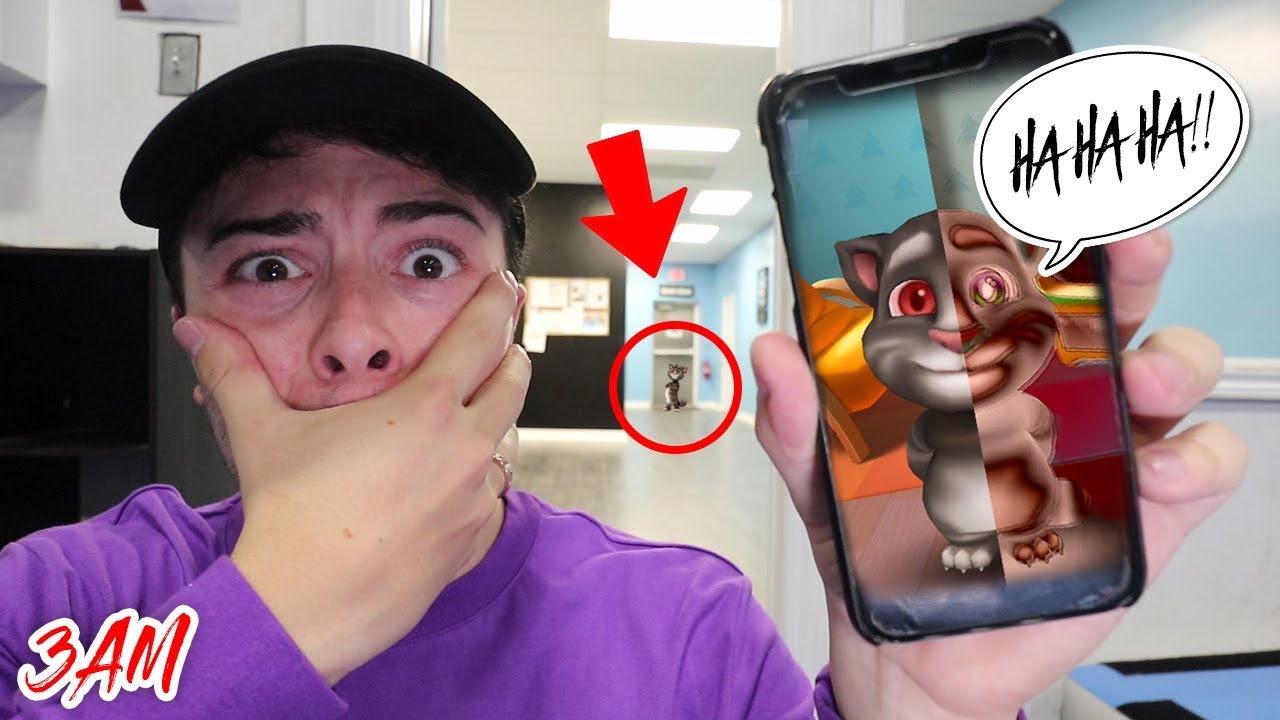

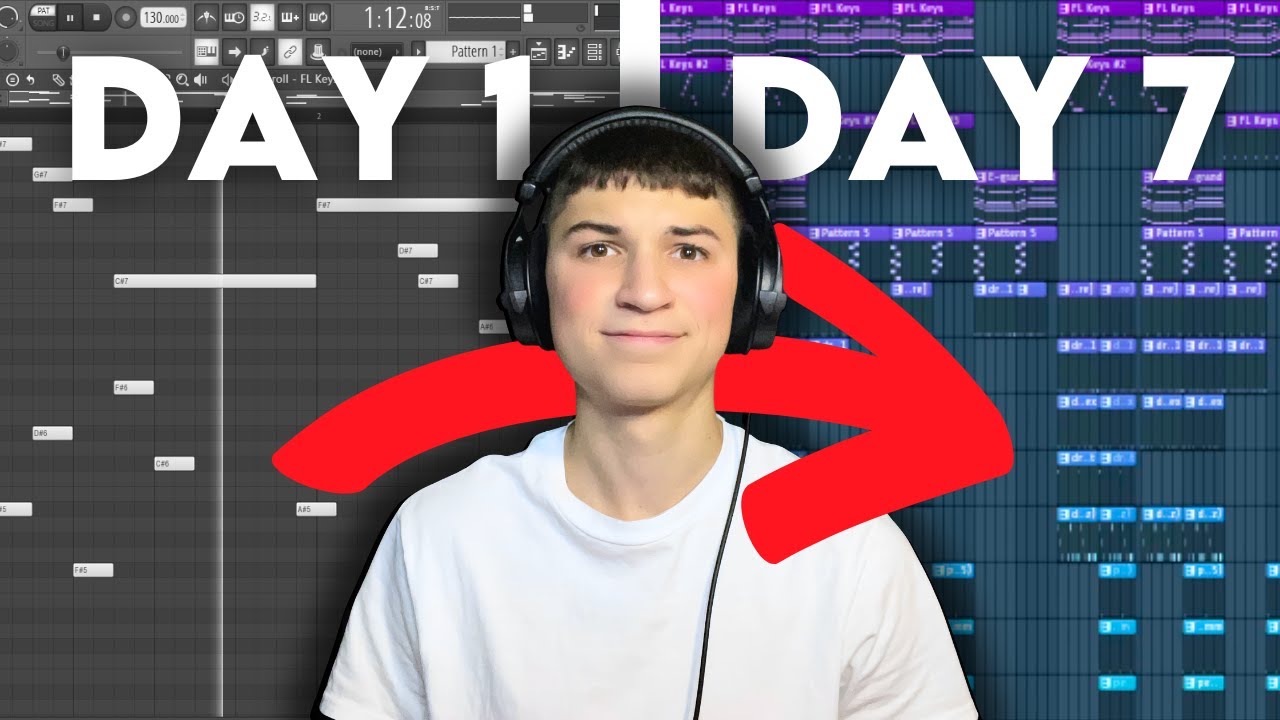

Build Covers with the Adobe Thumbnail Maker
Adobe Express brings editable templates, Firefly-powered image generation, and brand controls into one YouTube thumbnail workflow.


Start with a Layout That Fits the Video
Adobe Express offers editable YouTube thumbnail templates alongside a blank-canvas option. Choose a layout by topic or style, then replace the sample image and copy with content from your video. Upload photos, videos, PSD, or Ai files to keep more of your existing creative work inside the Adobe Express workflow.
Generate a New Visual Direction
Adobe Express provides an AI thumbnail generator powered by Adobe Firefly for turning text prompts into visual starting points. Describe the subject, mood, and composition, then add reference images when the look needs tighter direction. Open a result in the Adobe Express editor to crop, filter, add text, or generate another option before finishing the cover.




Keep Channel Branding Consistent
Adobe Express includes editing and brand controls for adapting a thumbnail around a channel's visual identity. Add a logo, fonts, colors, and graphics, then adjust the crop or palette around the focal image. Download the finished design, or use Premium Resize when the same artwork needs another format.
Use the Adobe Thumbnail Maker in 3 Steps
Move from a template, upload, or generated image to a finished YouTube cover in one Adobe Express project.
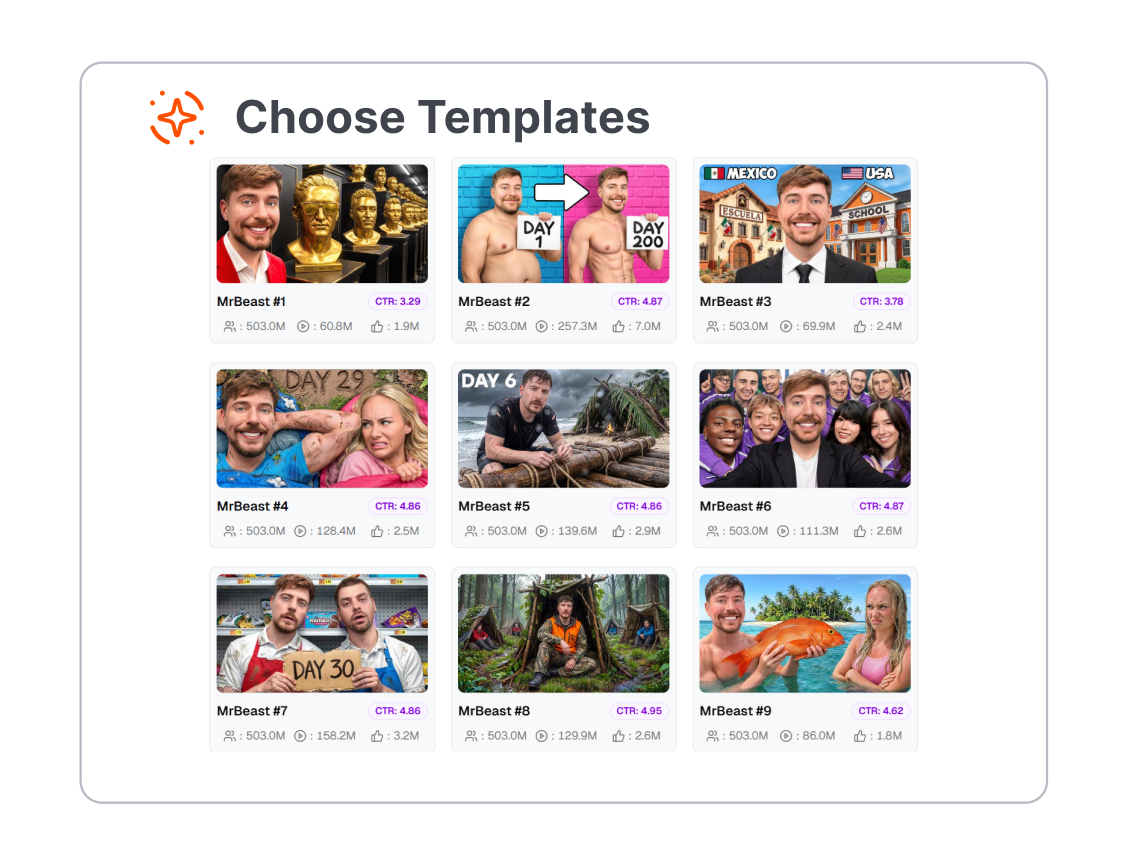
1. Pick a Starting Point
Open the YouTube thumbnail maker in Adobe Express and choose a template or blank layout. A text prompt can provide an AI-generated image when you need a new visual rather than an existing photo.
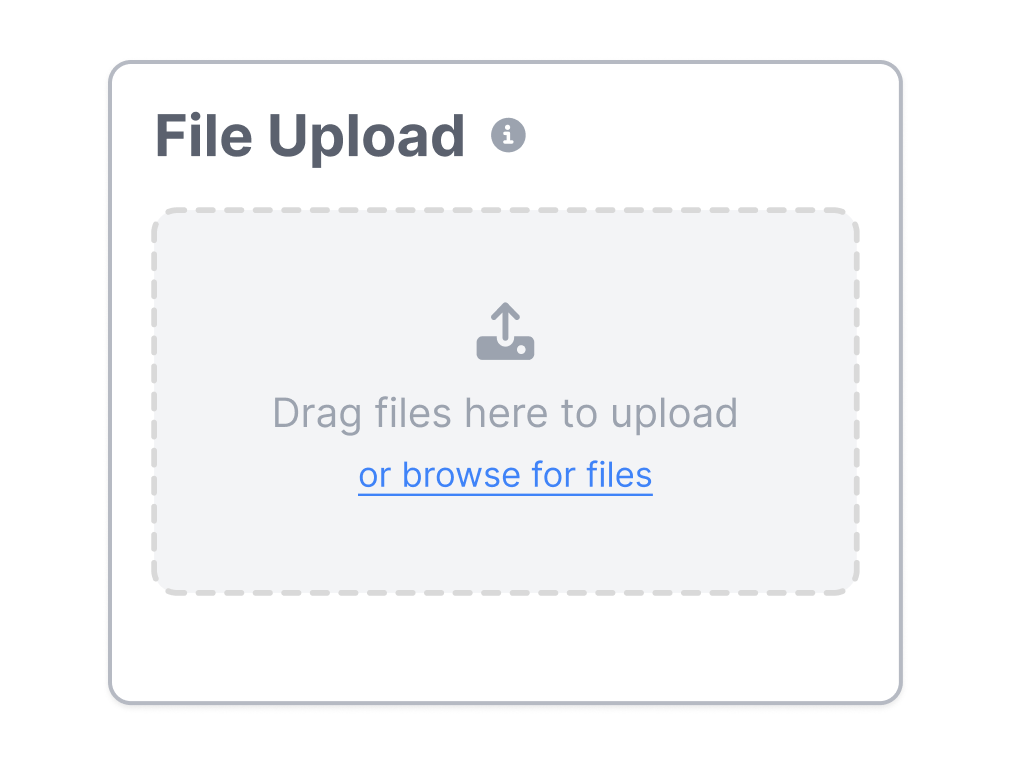
2. Replace and Arrange the Content
Add your own image, headline, logo, and supporting graphics. Adjust the type, crop, colors, and composition so the subject and message remain easy to recognize at preview size.
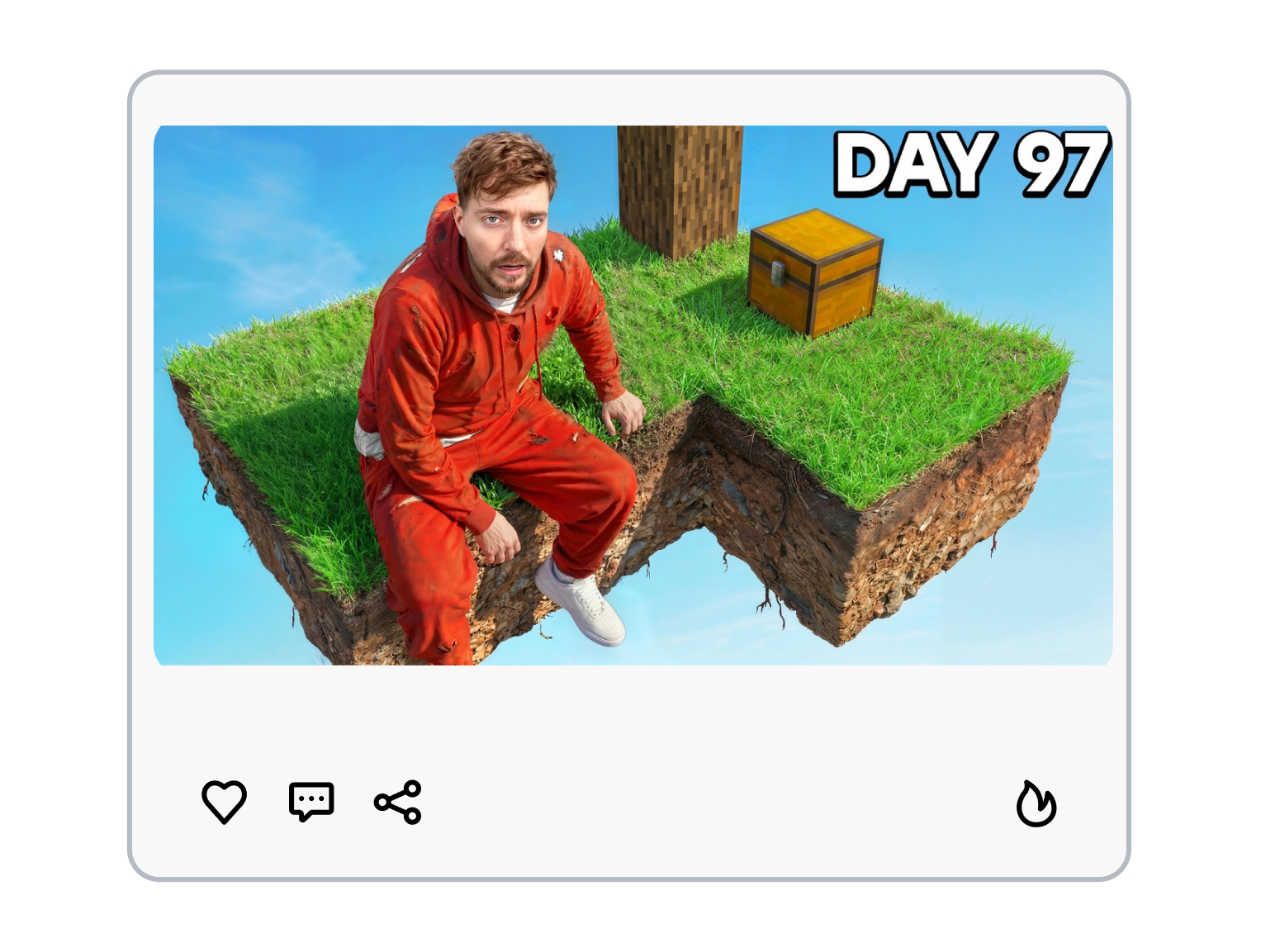
3. Review and Download
Check the design in its 16:9 layout and remove or replace any premium assets you do not plan to license. Download the finished thumbnail, then upload it separately in YouTube Studio.
Who Uses the Adobe Thumbnail Maker?
Use Adobe Express to prepare thumbnail designs for individual videos, recurring series, branded campaigns, and client channels.
YouTube Creators
Create covers for vlogs, reactions, reviews, tutorials, and gaming uploads. Rework an Adobe Express template for each topic while keeping the channel's recurring visual cues in place.
Podcasters
Turn an episode topic, guest photo, or key quote into a video cover. Use Adobe Express to keep show colors and typography consistent across interviews and clips.
Educators
Build clear thumbnails for lessons, demonstrations, course previews, and recorded webinars. Arrange the subject image and short lesson title so viewers can understand the topic before opening the video.
Marketing Teams
Prepare YouTube covers for product demos, customer stories, launches, and event recordings. Use Adobe Express brand assets and shared creative files to keep campaign materials visually aligned.
FAQs
What is Adobe Express Thumbnail Maker?
How do I make a thumbnail in Adobe Express?
Does Adobe Express thumbnail maker include AI tools?
Do I need Photoshop while using Adobe Thumbnail Creator?
What thumbnail size should I use?
Is Adobe Spark the same product?
What is a good Adobe thumbnail maker alternative?
Looking for Another Option? Explore Thumbs.ai as an Adobe Alternative.
Explore Thumbs.ai to generate thumbnails from text or reference images, create variations, add faces, and refine the result in a thumbnail-focused workspace.